> ## Documentation Index
> Fetch the complete documentation index at: https://docs.invopop.com/llms.txt
> Use this file to discover all available pages before exploring further.
# Invite members
> Add new users to your workspace
Members of your organization are users who can access your workspaces and workflows. Invite team members to collaborate on invoicing, workflow management, and document processing. There is no limit on the number of members you can invite to your organization.
At the moment, we don't support role-based access control. All members have the same permissions, and every member in your organization will have access to all your workspaces. We're planning to implement workspace-level access control in Q2, 2026.
## Invite a new member
To invite a new member to your organization:
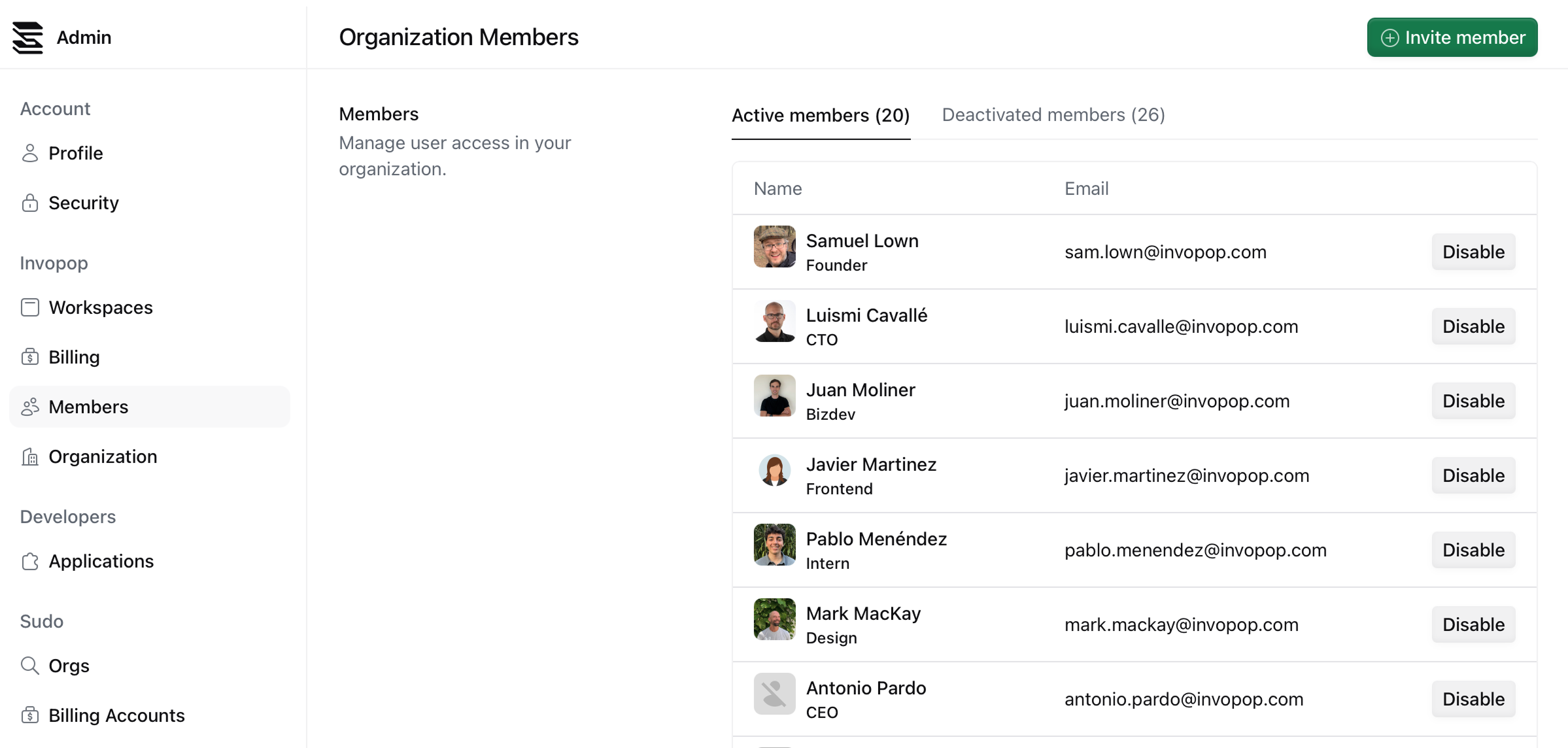
1. Navigate to the **Members** section in admin.
2. Click the Invite member button in the top right corner.
 3. Fill in the invitation form with the member's details.
4. Click Send invitation.
3. Fill in the invitation form with the member's details.
4. Click Send invitation.
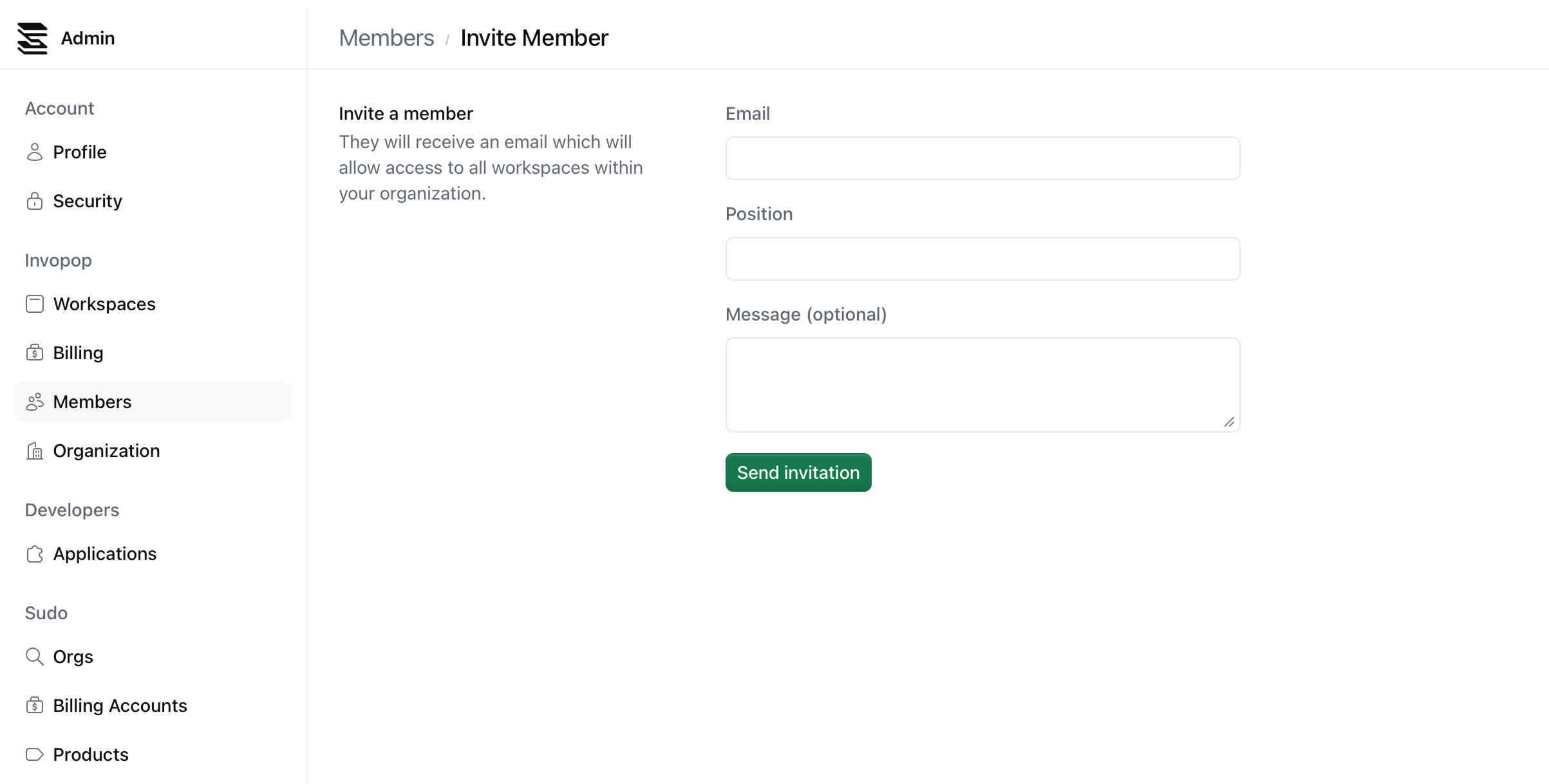 | | |
| ---------------------- | ----------------------------------------------------------------------------------------------------------------------------------- |
| **Email address** | The email address of the person you want to invite. They will introduce their name when they accept the invitation. |
| **Position** | Enter the member's job title or role. This field helps identify team members in the members list. |
| **Message (optional)** | Enter a message to be included in the invitation email. This field is optional and helps identify team members in the members list. |
The invited member receives an email with a link to join your organization. When they accept the invitation:
* They gain access to all workspaces associated with your organization
* They can view and manage workflows, documents, and settings
* They appear in your members list with their email address and position
All members have full access to all workspaces in your organization. Only invite people you trust with access to your invoicing and document management systems.
## FAQ
Yes. When they click the invitation link, they'll be prompted to create an account before joining your organization.
Yes. If a member is invited to multiple organizations, they will have access to all workspaces in all organizations. This is useful for consultants who can provide services to multiple clients.
All members have the same permissions. They can access all workspaces, create and edit workflows, manage documents, and configure settings. Role-based access control is planned for a future release.
Yes, invited members will appear in the members list immediately, and you can disable them if needed. See [Deactivate members](/admin/member-deactivate) for details.
| | |
| ---------------------- | ----------------------------------------------------------------------------------------------------------------------------------- |
| **Email address** | The email address of the person you want to invite. They will introduce their name when they accept the invitation. |
| **Position** | Enter the member's job title or role. This field helps identify team members in the members list. |
| **Message (optional)** | Enter a message to be included in the invitation email. This field is optional and helps identify team members in the members list. |
The invited member receives an email with a link to join your organization. When they accept the invitation:
* They gain access to all workspaces associated with your organization
* They can view and manage workflows, documents, and settings
* They appear in your members list with their email address and position
All members have full access to all workspaces in your organization. Only invite people you trust with access to your invoicing and document management systems.
## FAQ
Yes. When they click the invitation link, they'll be prompted to create an account before joining your organization.
Yes. If a member is invited to multiple organizations, they will have access to all workspaces in all organizations. This is useful for consultants who can provide services to multiple clients.
All members have the same permissions. They can access all workspaces, create and edit workflows, manage documents, and configure settings. Role-based access control is planned for a future release.
Yes, invited members will appear in the members list immediately, and you can disable them if needed. See [Deactivate members](/admin/member-deactivate) for details.