> ## Documentation Index
> Fetch the complete documentation index at: https://docs.invopop.com/llms.txt
> Use this file to discover all available pages before exploring further.
# Roles and groups
> Control what members can see and do with role-based access control across your organization and workspaces.
Available on the following plans:
Dev Pro Enterprise
Role-based access control (RBAC) lets you decide exactly what each member of your organization can see and do, per workspace. It is built from two pieces that you manage from the **Members** section in admin:
* **Roles** bundle the scopes (permissions) a member can use. A role says *what* someone may do, but nothing about *where*.
* **Groups** grant one or more roles across one or more workspaces, and members join groups. A group says *who* gets *which roles* and *where*.
A member's effective permissions are the union of every role granted by every group they belong to, evaluated per workspace.
A member who belongs to no group keeps full access, which is what keeps existing members working while you roll RBAC out. Access only narrows once you add someone to their first group, so you can introduce access control one member at a time.
## The Members section
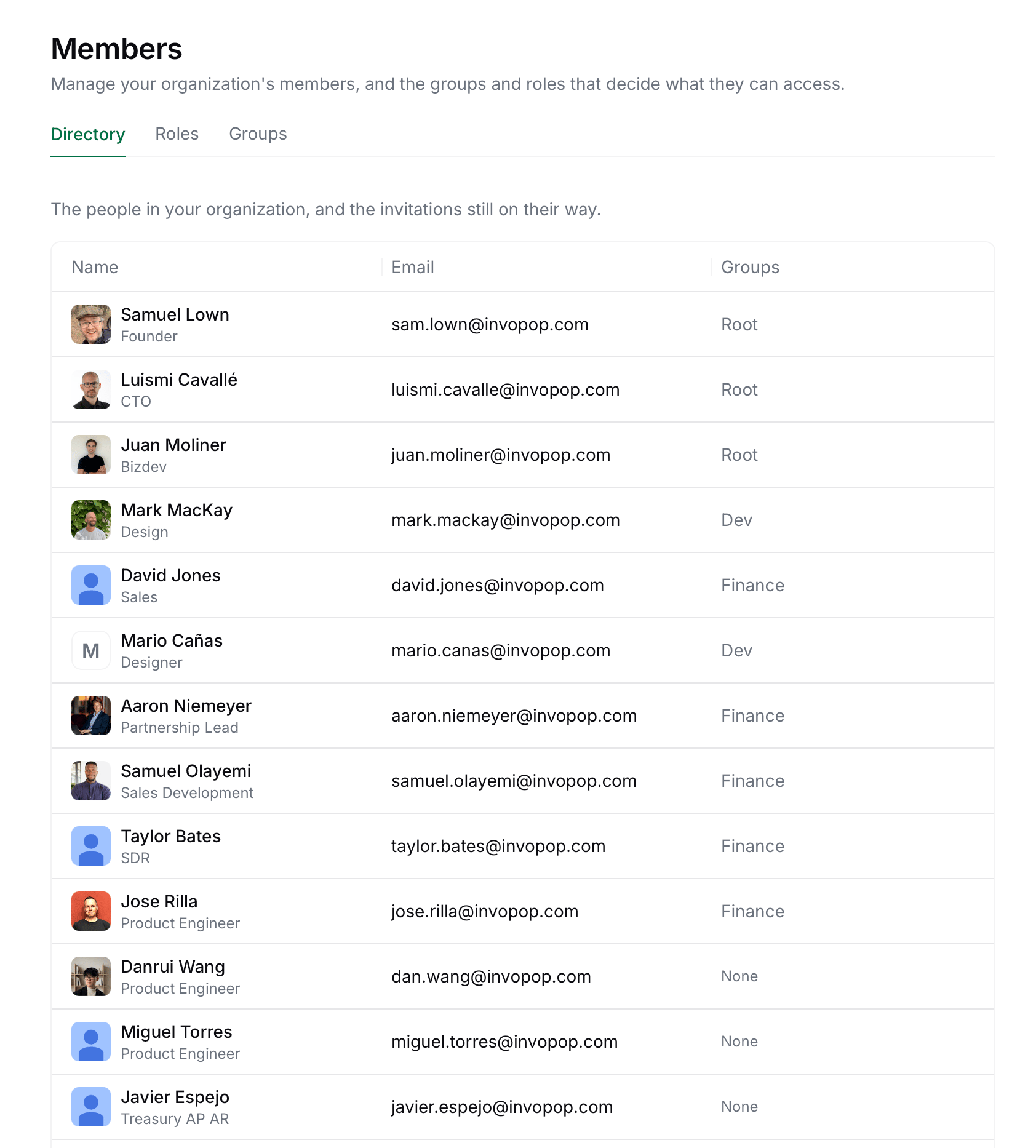
The **Members** page has three tabs:
| | |
| ------------- | ----------------------------------------------------------------------------------------------------------------------- |
| **Directory** | The people in your organization and pending invitations. A **Groups** column shows which groups each member belongs to. |
| **Roles** | The roles defined in your organization, with their description and the scopes they grant. |
| **Groups** | The groups in your organization, with their description and the grants (roles and workspaces) they carry. |
 ## Roles
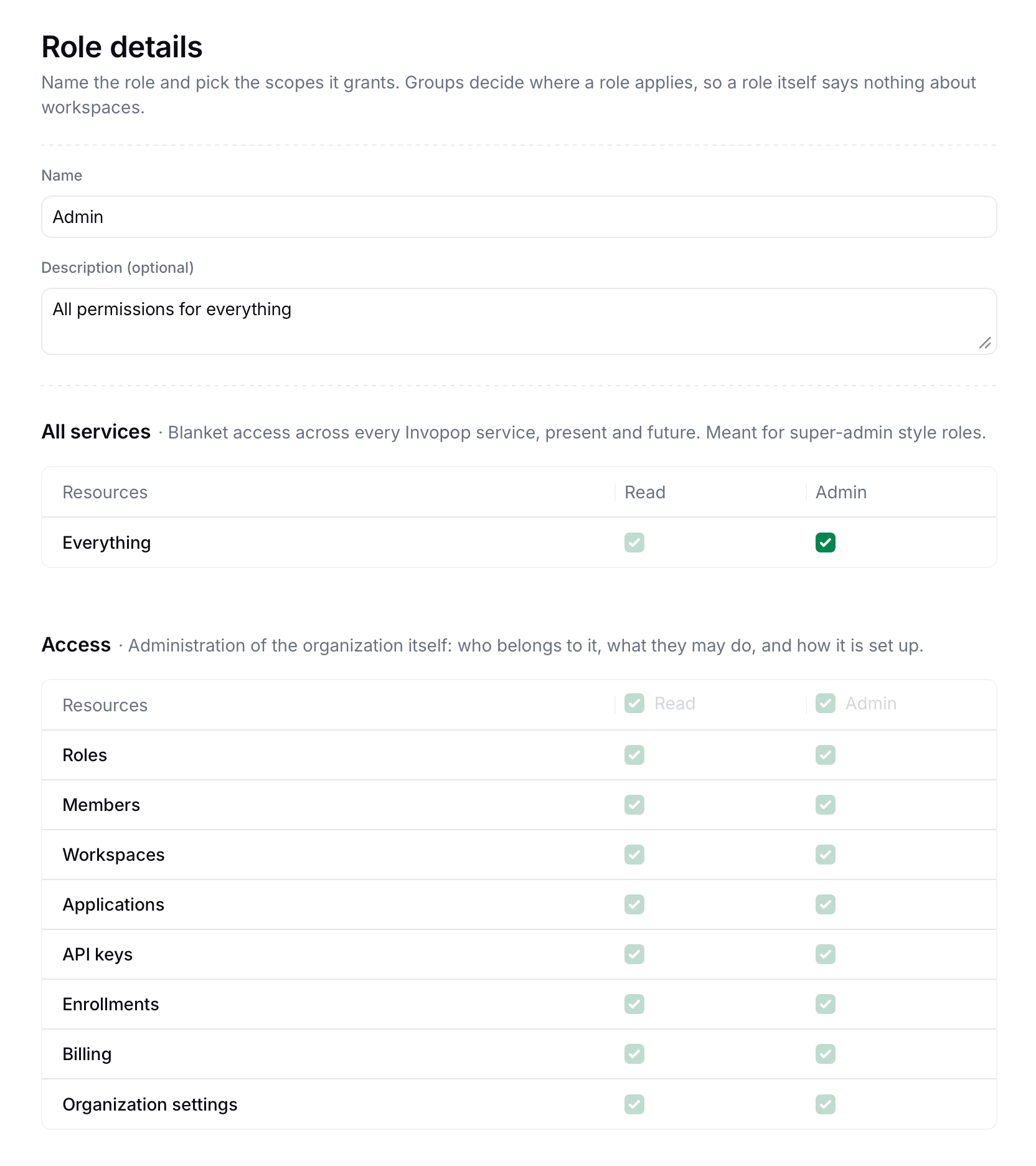
A role is a named set of scopes. Scopes are organised by service, and each resource within a service can be granted at one of two levels:
| | |
| --------- | -------------------------------------------------------------------------------------------------------- |
| **Read** | View the resource without changing it. |
| **Admin** | Create, update and delete the resource. Admin always includes Read, so ticking Admin ticks Read for you. |
Ticking the **Read** or **Admin** checkbox in a service's header grants that level for every resource in the service, including resources added to that service in the future. The individual rows are then locked, since the service-wide scope already covers them.
### Available scopes
| Service | Resources | Notes |
| ---------------- | ----------------------------------------------------------------------------------------------- | ----------------------------------------------------------------------------------------------------- |
| **All services** | Everything | Blanket access across every Invopop service, present and future. Meant for super-admin style roles. |
| **Access** | Roles, Members, Workspaces, Applications, API keys, Enrollments, Billing, Organization settings | Administration of the organization itself: who belongs to it, what they may do, and how it is set up. |
| **Transform** | Workflows, Jobs | Workflows and the jobs that run documents through them. |
| **Silo** | Entries | Document storage: entries and their attachments. |
Anyone with **Admin** on **Roles**, **Members** or **Everything** can change who has access to what, including granting themselves more access. Keep these scopes to a small number of trusted administrators.
### Create a role
1. Navigate to **Members** in admin and open the **Roles** tab.
2. Click New role in the top right corner.
3. Enter a **Name** and, optionally, a **Description**.
4. Tick the **Read** or **Admin** checkbox for each resource the role should grant, or use the header checkbox to grant a whole service.
5. Click Create role.
## Roles
A role is a named set of scopes. Scopes are organised by service, and each resource within a service can be granted at one of two levels:
| | |
| --------- | -------------------------------------------------------------------------------------------------------- |
| **Read** | View the resource without changing it. |
| **Admin** | Create, update and delete the resource. Admin always includes Read, so ticking Admin ticks Read for you. |
Ticking the **Read** or **Admin** checkbox in a service's header grants that level for every resource in the service, including resources added to that service in the future. The individual rows are then locked, since the service-wide scope already covers them.
### Available scopes
| Service | Resources | Notes |
| ---------------- | ----------------------------------------------------------------------------------------------- | ----------------------------------------------------------------------------------------------------- |
| **All services** | Everything | Blanket access across every Invopop service, present and future. Meant for super-admin style roles. |
| **Access** | Roles, Members, Workspaces, Applications, API keys, Enrollments, Billing, Organization settings | Administration of the organization itself: who belongs to it, what they may do, and how it is set up. |
| **Transform** | Workflows, Jobs | Workflows and the jobs that run documents through them. |
| **Silo** | Entries | Document storage: entries and their attachments. |
Anyone with **Admin** on **Roles**, **Members** or **Everything** can change who has access to what, including granting themselves more access. Keep these scopes to a small number of trusted administrators.
### Create a role
1. Navigate to **Members** in admin and open the **Roles** tab.
2. Click New role in the top right corner.
3. Enter a **Name** and, optionally, a **Description**.
4. Tick the **Read** or **Admin** checkbox for each resource the role should grant, or use the header checkbox to grant a whole service.
5. Click Create role.
 Roles are reusable: define them once and grant them through as many groups and workspaces as you need. A few common patterns:
| | |
| ------------- | --------------------------------------------------------------------------------------------------------------------------- |
| **Viewer** | Read on Transform and Silo. Can browse workflows, jobs and documents without changing anything. |
| **Operator** | Admin on Silo Entries, Read on Transform. Can upload and manage documents and follow their jobs, but cannot edit workflows. |
| **Developer** | Admin on Transform and Silo, Read on Access API keys. Can build workflows and process documents. |
| **Owner** | Admin on Everything. Full control, including billing and organization settings. |
## Groups
A group connects roles to workspaces and members to the group. When you create a group you pick which roles it grants and where each of them applies. A single group can cover several roles across several workspaces, so you can usually model a team with one group.
The **Access** table in the group form has one row per workspace plus an **Entire organization** row, each with a dropdown to select one or more roles. Granting a role on the Entire organization row applies it across every workspace and also covers organization-level settings that belong to no single workspace, such as billing, members and domains. Access scopes only take effect when granted on the Entire organization row.
### Create a group
1. Navigate to **Members** in admin and open the **Groups** tab.
2. Click New group in the top right corner.
3. Enter a **Name** that reflects the team or function the group represents, and optionally a **Description**.
4. In the **Access** section, select the roles the group grants on each workspace row, or on the **Entire organization** row for organization-wide access.
5. Click Create group.
Roles are reusable: define them once and grant them through as many groups and workspaces as you need. A few common patterns:
| | |
| ------------- | --------------------------------------------------------------------------------------------------------------------------- |
| **Viewer** | Read on Transform and Silo. Can browse workflows, jobs and documents without changing anything. |
| **Operator** | Admin on Silo Entries, Read on Transform. Can upload and manage documents and follow their jobs, but cannot edit workflows. |
| **Developer** | Admin on Transform and Silo, Read on Access API keys. Can build workflows and process documents. |
| **Owner** | Admin on Everything. Full control, including billing and organization settings. |
## Groups
A group connects roles to workspaces and members to the group. When you create a group you pick which roles it grants and where each of them applies. A single group can cover several roles across several workspaces, so you can usually model a team with one group.
The **Access** table in the group form has one row per workspace plus an **Entire organization** row, each with a dropdown to select one or more roles. Granting a role on the Entire organization row applies it across every workspace and also covers organization-level settings that belong to no single workspace, such as billing, members and domains. Access scopes only take effect when granted on the Entire organization row.
### Create a group
1. Navigate to **Members** in admin and open the **Groups** tab.
2. Click New group in the top right corner.
3. Enter a **Name** that reflects the team or function the group represents, and optionally a **Description**.
4. In the **Access** section, select the roles the group grants on each workspace row, or on the **Entire organization** row for organization-wide access.
5. Click Create group.
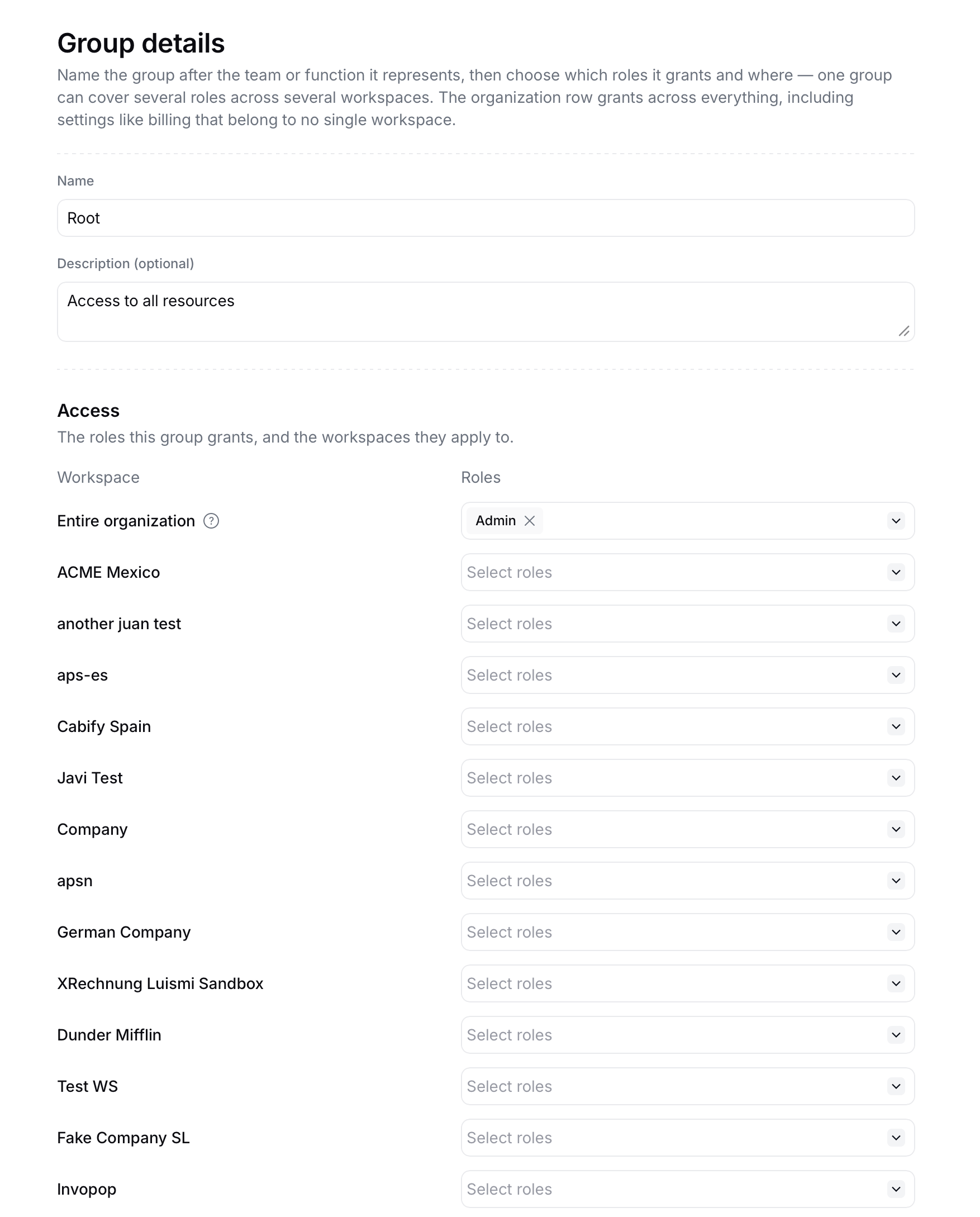 You need at least one role before the group form lets you grant anything. If the **Access** section reads *No roles yet*, use the Create role shortcut to define one first.
### Assign groups to a member
Groups are assigned from the member's own page:
1. Navigate to **Members** in admin and open the **Directory** tab.
2. Click the member's row.
3. In the **Groups** section, select the groups the member belongs to. Remove a group by clicking the cross on its chip.
4. Save the member.
You need at least one role before the group form lets you grant anything. If the **Access** section reads *No roles yet*, use the Create role shortcut to define one first.
### Assign groups to a member
Groups are assigned from the member's own page:
1. Navigate to **Members** in admin and open the **Directory** tab.
2. Click the member's row.
3. In the **Groups** section, select the groups the member belongs to. Remove a group by clicking the cross on its chip.
4. Save the member.
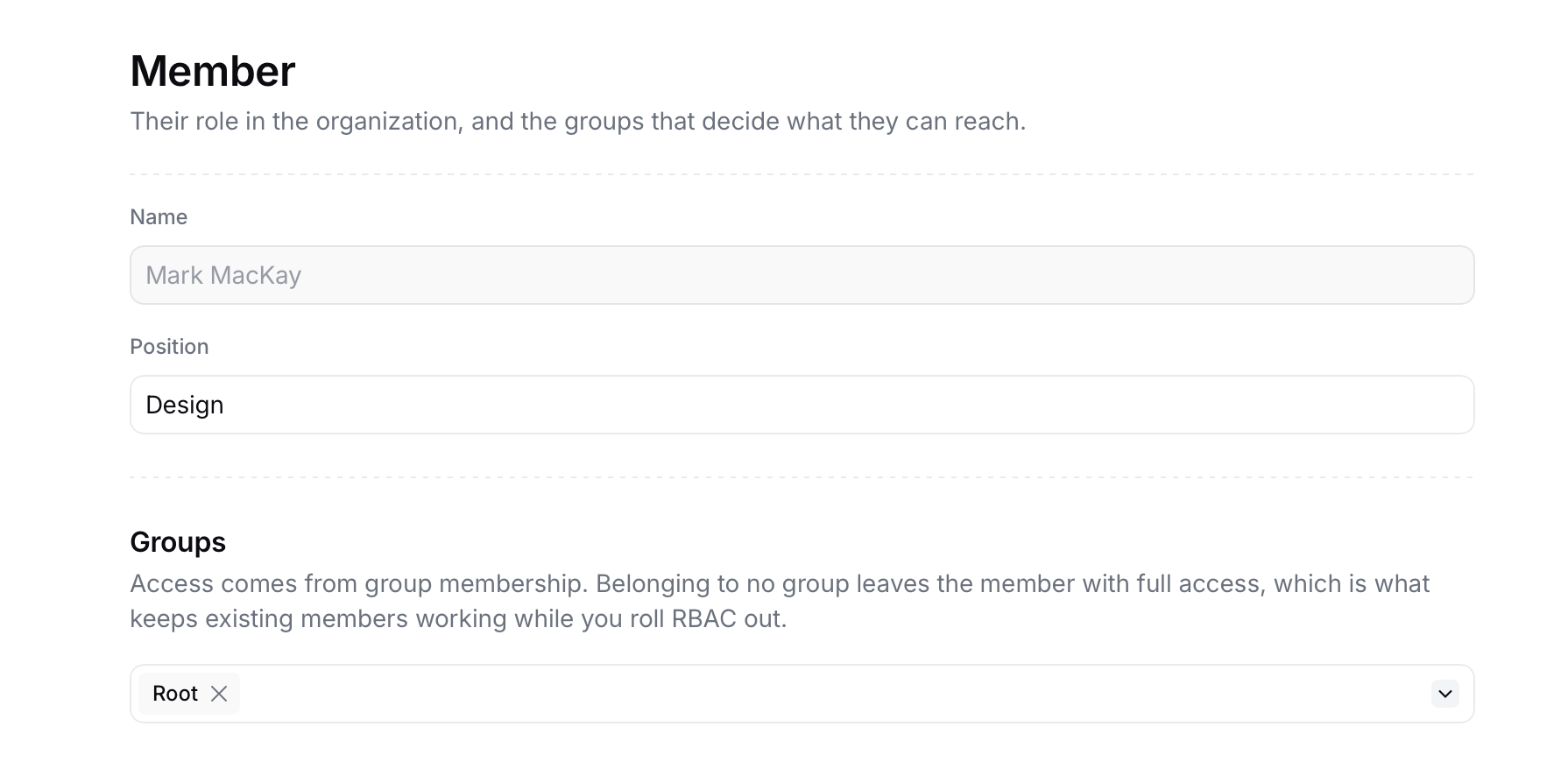 To review a single member's access, find them in the **Directory** tab: the **Groups** column lists every group they belong to.
## Example: a finance team with read-only auditors
Suppose you run two workspaces, **Spain** and **Portugal**, and want:
* The finance team to manage documents in both workspaces.
* An external auditor to read documents in Spain only.
* Two administrators with full control.
1. Create three roles: **Operator** (Admin on Silo Entries, Read on Transform), **Viewer** (Read on Silo and Transform) and **Owner** (Admin on Everything).
2. Create a **Finance** group granting **Operator** on the Spain and Portugal rows, and add the finance team.
3. Create an **Auditors** group granting **Viewer** on the Spain row only, and add the auditor.
4. Create an **Admins** group granting **Owner** on the Entire organization row, and add the two administrators.
## FAQ
They keep full access to every workspace, exactly as before RBAC. Access is only restricted once a member belongs to at least one group, so review the Directory for members whose **Groups** column reads *None* once your rollout is complete.
Yes. Their permissions are the union of every role granted by every group, per workspace. There are no deny rules, so adding a second group can only widen access. Adding the first group narrows it, since it replaces the default full access.
No. A role is a fixed set of scopes. Create separate roles if two workspaces need different permission sets, then grant each role on the relevant workspace rows of a group.
Billing, members, domains and other **Access** scopes belong to the organization, not to any single workspace. Grant the role on the **Entire organization** row of the group instead.
Remove them from their groups to narrow their access, or deactivate them to remove it entirely. See [Disable members](/admin/member-deactivate).
To review a single member's access, find them in the **Directory** tab: the **Groups** column lists every group they belong to.
## Example: a finance team with read-only auditors
Suppose you run two workspaces, **Spain** and **Portugal**, and want:
* The finance team to manage documents in both workspaces.
* An external auditor to read documents in Spain only.
* Two administrators with full control.
1. Create three roles: **Operator** (Admin on Silo Entries, Read on Transform), **Viewer** (Read on Silo and Transform) and **Owner** (Admin on Everything).
2. Create a **Finance** group granting **Operator** on the Spain and Portugal rows, and add the finance team.
3. Create an **Auditors** group granting **Viewer** on the Spain row only, and add the auditor.
4. Create an **Admins** group granting **Owner** on the Entire organization row, and add the two administrators.
## FAQ
They keep full access to every workspace, exactly as before RBAC. Access is only restricted once a member belongs to at least one group, so review the Directory for members whose **Groups** column reads *None* once your rollout is complete.
Yes. Their permissions are the union of every role granted by every group, per workspace. There are no deny rules, so adding a second group can only widen access. Adding the first group narrows it, since it replaces the default full access.
No. A role is a fixed set of scopes. Create separate roles if two workspaces need different permission sets, then grant each role on the relevant workspace rows of a group.
Billing, members, domains and other **Access** scopes belong to the organization, not to any single workspace. Grant the role on the **Entire organization** row of the group instead.
Remove them from their groups to narrow their access, or deactivate them to remove it entirely. See [Disable members](/admin/member-deactivate).