> ## Documentation Index
> Fetch the complete documentation index at: https://docs.invopop.com/llms.txt
> Use this file to discover all available pages before exploring further.
# Chorus Pro supplier registration guide
> Register suppliers to issue invoices to French public institutions with Chorus Pro.
## Introduction
Chorus Pro is a mandatory service provided by the French government for invoicing French public institutions. Before a supplier can issue invoices through the platform, they need a Chorus Pro technical account and must be registered with Invopop using the [Chorus Pro app](/apps/choruspro-france).
In this guide you'll learn how to create the Chorus Pro credentials and register a supplier. Once a supplier is registered, continue with the companion guide: [Chorus Pro issuing invoices](/guides/fr-chorus-pro).
## Prerequisites
To register a supplier with Chorus Pro, you will need:
* A [Chorus Pro](https://portail.chorus-pro.gouv.fr/) account for the supplier (or a sandbox account for testing — see below).
* The supplier's VAT number.
| - | Sandbox | Live |
| ------------ | --------------------------------------------------- | -------------------------------- |
| **Supplier** | Test Chorus Pro account (qualif.chorus-pro.gouv.fr) | Real Chorus Pro account required |
| **Accounts** | Downloadable CSV with test accounts | — |
## Setup
Configure your Invopop Workspace for Chorus Pro supplier registration.
Complete these steps:
1. Go to **Configuration** > **Apps** in the Console.
2. Find **UN/CEFACT CII** in the app list and click **Connect** to activate the app.
3. Find **Chorus Pro** in the app list and click **Connect** to activate the app.
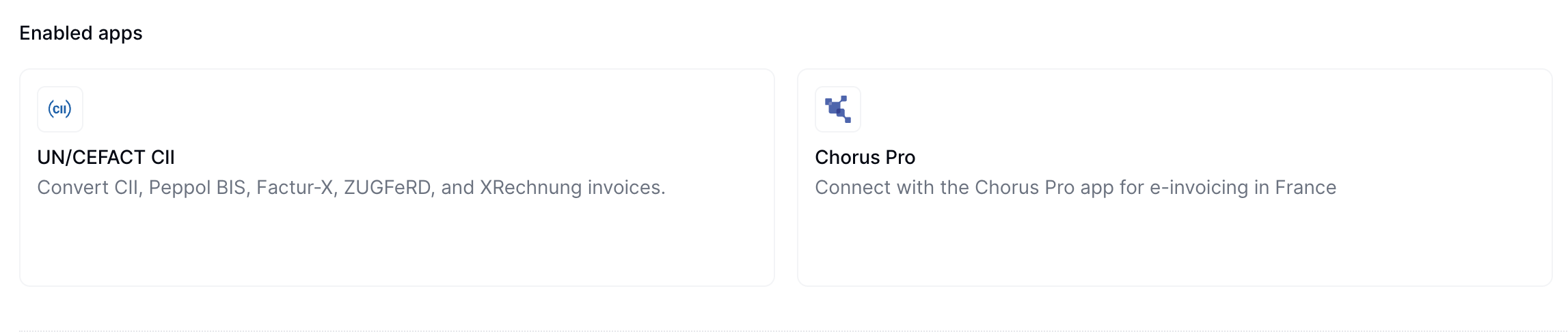
After connecting, you'll see both UN/CEFACT CII and Chorus Pro listed in the Enabled Apps section.
 Add a new workflow to your workspace for registering suppliers. You can start with the template below.
This workflow will issue a registration request for a supplier to complete.
Copy and paste this code into a new [Empty Party workflow](https://console.invopop.com/redirect/workflows/new?template=empty-party) code view.
```json Example Chorus Pro register supplier workflow theme={"system"}
{
"name": "Chorus Pro register supplier",
"description": "Register a supplier with Chorus Pro",
"schema": "org/party",
"steps": [
{
"id": "9ed27c40-4ced-11f0-bcdc-61b84b5eeae8",
"name": "Set state",
"provider": "silo.state",
"summary": "Set state to `processing`{.state .processing}",
"config": {
"state": "processing"
}
},
{
"id": "b8d3dc10-4ba3-11f0-a0a5-bbd7c9d8117a",
"name": "Register supplier with Chorus Pro",
"provider": "chorus-pro.register"
},
{
"id": "a3d43940-4ced-11f0-bcdc-61b84b5eeae8",
"name": "Set state",
"provider": "silo.state",
"summary": "Set state to `registered`{.state .registered}",
"config": {
"state": "registered"
}
}
],
"rescue": [
{
"id": "a6c4f090-4ced-11f0-bcdc-61b84b5eeae8",
"name": "Set state",
"provider": "silo.state",
"summary": "Set state to `error`{.state .error}",
"config": {
"state": "error"
}
}
]
}
```
Before starting, review the [workflows guide](/guides/workflows) to understand the general setup process.
In [Console](https://console.invopop.com), create a new workflow and choose [Empty Party workflow](https://console.invopop.com/redirect/workflows/new?template=empty-party) as the base. Name the workflow with a descriptive label such as "Chorus Pro Supplier Registration".
The new workflow performs a single step:
1. **Register supplier with Chorus Pro**
Add any additional steps you need such as error handling, and save the new workflow.
Keep the workflow ID at hand as you'll need it later.
## Chorus Pro credentials
This section explains what suppliers need to configure within their Chorus Pro account to enable integration with Invopop.
To configure Chorus Pro, complete these steps:
Sign up for a [Chorus Pro](https://portail.chorus-pro.gouv.fr/aife_csm?id=aife_enrollment) account if you don't have one.
To test in sandbox mode, create an account in the [Chorus Pro sandbox](https://qualif.chorus-pro.gouv.fr/aife_qual). Download a CSV file with test accounts. Use one of the accounts to log in. For more information, visit the [Chorus Pro documentation](https://portail.chorus-pro.gouv.fr/aife_documentation?sys_kb_id=8ea00d85c398ea1477c2530ed40131e2\&id=kb_article_view\&sysparm_rank=1\&sysparm_tsqueryId=66f41ea033de625056688539bd5c7bd9).
Once logged in to your Chorus Pro account, navigate to the API configuration area:
1. Go to **Domains** > **Connections** in the main menu
Add a new workflow to your workspace for registering suppliers. You can start with the template below.
This workflow will issue a registration request for a supplier to complete.
Copy and paste this code into a new [Empty Party workflow](https://console.invopop.com/redirect/workflows/new?template=empty-party) code view.
```json Example Chorus Pro register supplier workflow theme={"system"}
{
"name": "Chorus Pro register supplier",
"description": "Register a supplier with Chorus Pro",
"schema": "org/party",
"steps": [
{
"id": "9ed27c40-4ced-11f0-bcdc-61b84b5eeae8",
"name": "Set state",
"provider": "silo.state",
"summary": "Set state to `processing`{.state .processing}",
"config": {
"state": "processing"
}
},
{
"id": "b8d3dc10-4ba3-11f0-a0a5-bbd7c9d8117a",
"name": "Register supplier with Chorus Pro",
"provider": "chorus-pro.register"
},
{
"id": "a3d43940-4ced-11f0-bcdc-61b84b5eeae8",
"name": "Set state",
"provider": "silo.state",
"summary": "Set state to `registered`{.state .registered}",
"config": {
"state": "registered"
}
}
],
"rescue": [
{
"id": "a6c4f090-4ced-11f0-bcdc-61b84b5eeae8",
"name": "Set state",
"provider": "silo.state",
"summary": "Set state to `error`{.state .error}",
"config": {
"state": "error"
}
}
]
}
```
Before starting, review the [workflows guide](/guides/workflows) to understand the general setup process.
In [Console](https://console.invopop.com), create a new workflow and choose [Empty Party workflow](https://console.invopop.com/redirect/workflows/new?template=empty-party) as the base. Name the workflow with a descriptive label such as "Chorus Pro Supplier Registration".
The new workflow performs a single step:
1. **Register supplier with Chorus Pro**
Add any additional steps you need such as error handling, and save the new workflow.
Keep the workflow ID at hand as you'll need it later.
## Chorus Pro credentials
This section explains what suppliers need to configure within their Chorus Pro account to enable integration with Invopop.
To configure Chorus Pro, complete these steps:
Sign up for a [Chorus Pro](https://portail.chorus-pro.gouv.fr/aife_csm?id=aife_enrollment) account if you don't have one.
To test in sandbox mode, create an account in the [Chorus Pro sandbox](https://qualif.chorus-pro.gouv.fr/aife_qual). Download a CSV file with test accounts. Use one of the accounts to log in. For more information, visit the [Chorus Pro documentation](https://portail.chorus-pro.gouv.fr/aife_documentation?sys_kb_id=8ea00d85c398ea1477c2530ed40131e2\&id=kb_article_view\&sysparm_rank=1\&sysparm_tsqueryId=66f41ea033de625056688539bd5c7bd9).
Once logged in to your Chorus Pro account, navigate to the API configuration area:
1. Go to **Domains** > **Connections** in the main menu
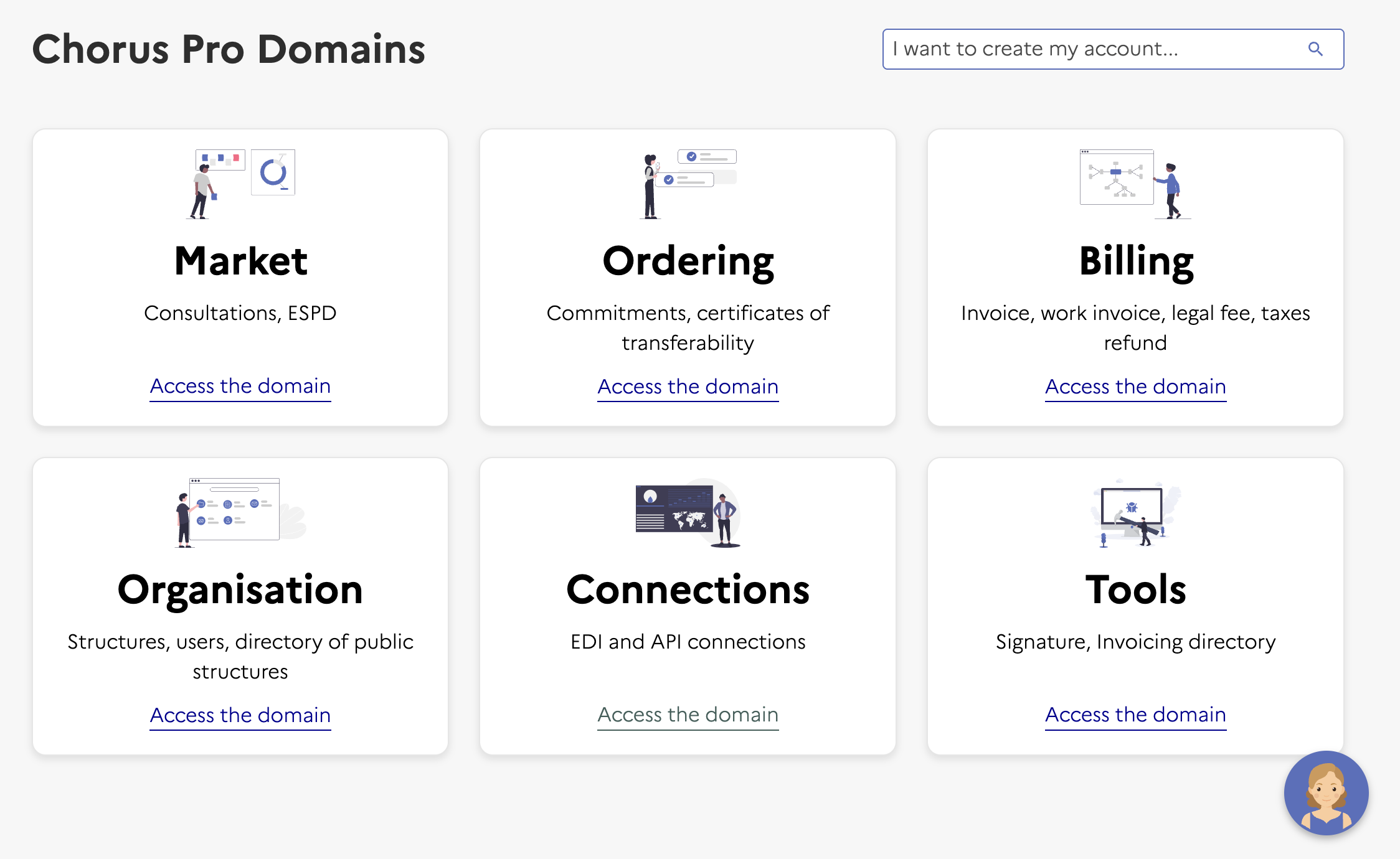 2. Click **Access Service** in the Technical Account section (bottom left)
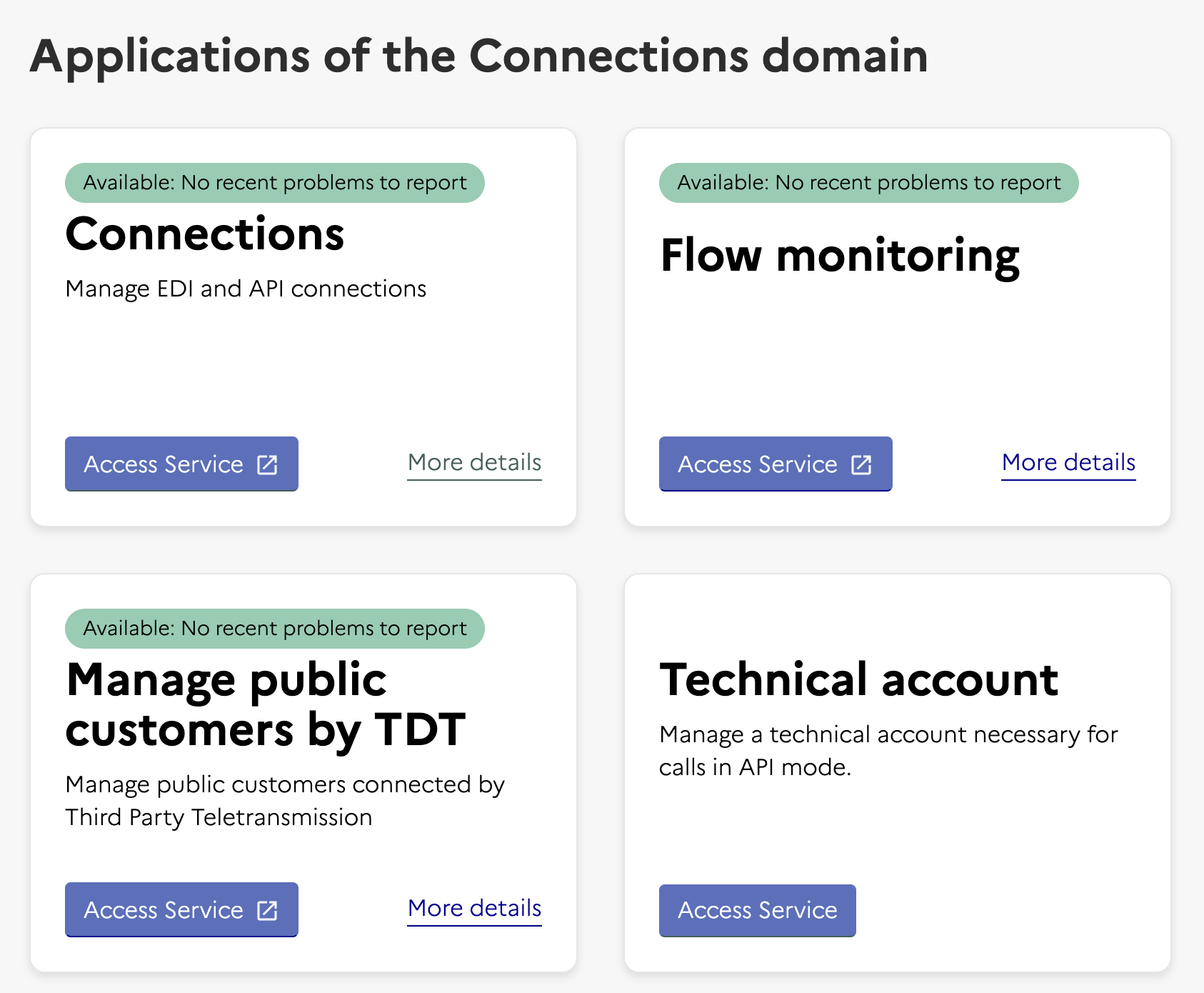 This opens a new page where you can manage your technical accounts.
Set up the technical account credentials, this opens a form to create a technical account:
* Set the type of request to **Creation of a technical account**
* Select your company in the company field
* This creates a login and password. **Copy these credentials as you'll need them when registering with Invopop**
This opens a new page where you can manage your technical accounts.
Set up the technical account credentials, this opens a form to create a technical account:
* Set the type of request to **Creation of a technical account**
* Select your company in the company field
* This creates a login and password. **Copy these credentials as you'll need them when registering with Invopop**
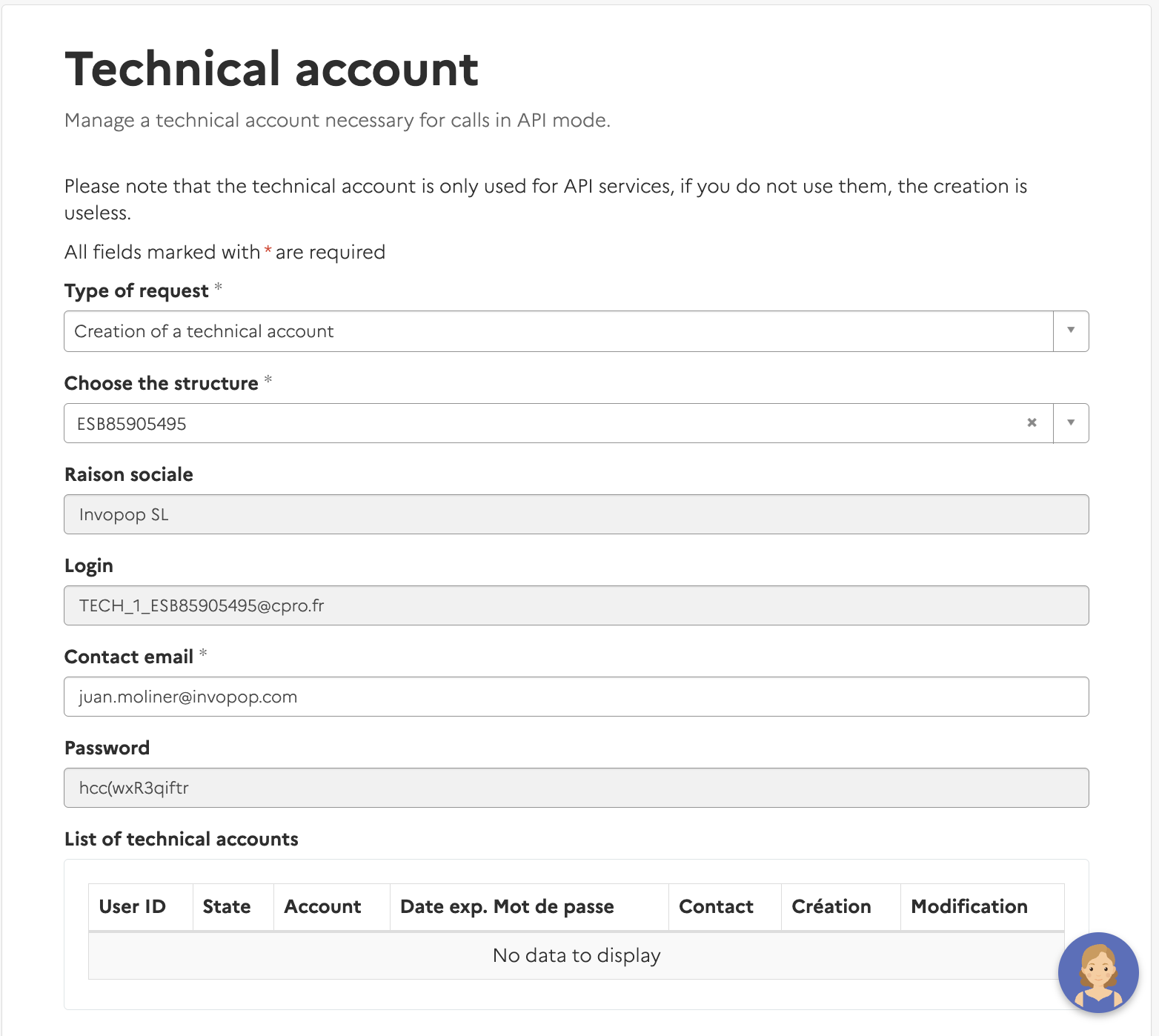 Click **Submit** to complete the setup
Return to Invopop for the next steps.
## Register a supplier
Now that you have a technical account, you can register a supplier with Chorus Pro.
Use the [Create an entry](/api-ref/silo/entries/create-an-entry-put) endpoint to upload a new supplier. Include a [party](https://docs.gobl.org/draft-0/org/party) object in the [data](/api-ref/silo/entries/create-an-entry-put#body-data) field. For this step, you only need the VAT number.
After successful upload, you'll see the supplier in the **Parties** section with status `Empty`.
Click **Submit** to complete the setup
Return to Invopop for the next steps.
## Register a supplier
Now that you have a technical account, you can register a supplier with Chorus Pro.
Use the [Create an entry](/api-ref/silo/entries/create-an-entry-put) endpoint to upload a new supplier. Include a [party](https://docs.gobl.org/draft-0/org/party) object in the [data](/api-ref/silo/entries/create-an-entry-put#body-data) field. For this step, you only need the VAT number.
After successful upload, you'll see the supplier in the **Parties** section with status `Empty`.
 Send the supplier to the registration workflow using the [Create a job](/api-ref/transform/jobs/create-a-job-post) endpoint. Use:
* The supplier's silo entry UUID from the previous step
* The Supplier Registration workflow ID from the [Setup](#setup) section
This workflow generates a unique URL for the supplier to access and complete the registration process. The URL is stored in the supplier's metadata.
Send the supplier to the registration workflow using the [Create a job](/api-ref/transform/jobs/create-a-job-post) endpoint. Use:
* The supplier's silo entry UUID from the previous step
* The Supplier Registration workflow ID from the [Setup](#setup) section
This workflow generates a unique URL for the supplier to access and complete the registration process. The URL is stored in the supplier's metadata.
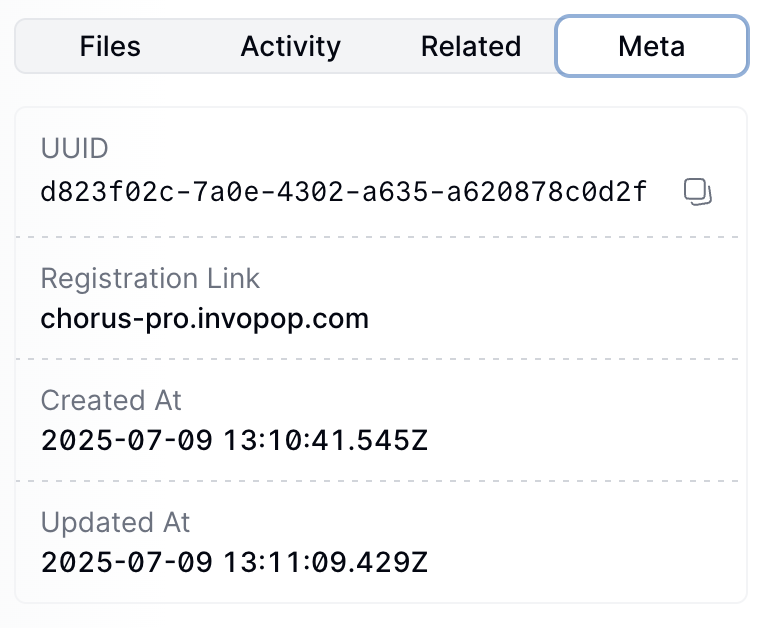 The workflow stays in progress until the supplier completes the registration process. The supplier must access the link and add the credentials they created previously.
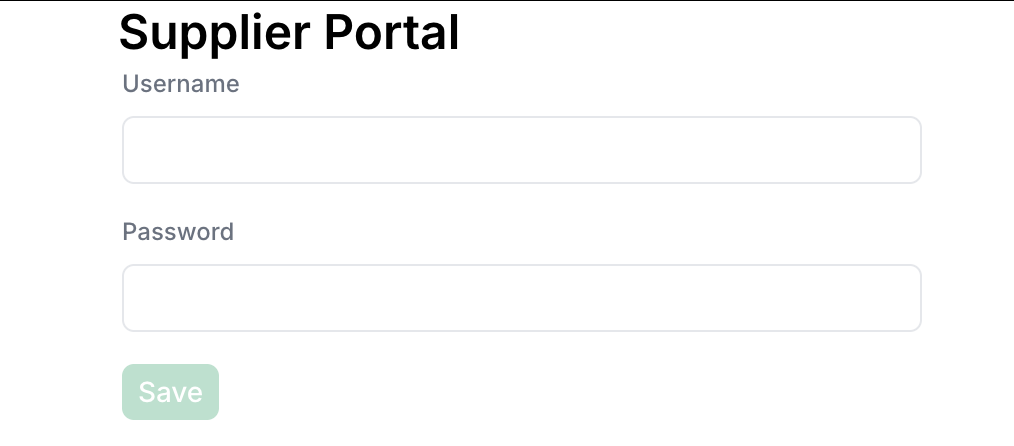 The supplier's status will change to `Registered` when authentication is complete.
You can fill the form via API by sending a PUT request to the registration link. The payload should be a JSON object with the following fields:
* `username` (string): The supplier's Chorus Pro username.
* `password` (string): The supplier's Chorus Pro password.
At this point, you're ready to start sending invoices on behalf of the supplier. Head over to the [Chorus Pro issuing invoices guide](/guides/fr-chorus-pro) to continue.
## FAQ
For B2B PA flows: register the supplier via the France PA Register Party workflow (publishes the SIREN to the Annuaire and Peppol). For Chorus Pro: register the supplier with their SIRET on Chorus Pro's portal and link credentials in the Chorus Pro app.
France PA does not require supplier-side certificates — Peppol uses Invopop's AP cert. Chorus Pro uses an OAuth token bound to the supplier's account; the token is encrypted at rest in Invopop.
Ensure the supplier has a valid Chorus Pro account and provided correct credentials. Contact support if registration workflow issues persist.
OAuth 2.0 client credentials issued by Chorus Pro after registration. Invopop stores the token encrypted; suppliers can revoke access at any time through Chorus Pro's portal.
Upload the company as a party (Console → Parties → Suppliers → + New Supplier, or via the Create an Entry API) with name, tax\_id, address, and email. Then run it through the party registration workflow — the contact will receive a registration wizard link to provide proof of ownership.
Once approved, the party is registered on the Peppol network (SMP+SML+Peppol visibility by default with the `ubl-invoice` doc group) and ready to receive invoices.
A supplier with that Participant ID already exists in your workspace. Either reuse the existing party or, if it really is a new entity, check whether it should be registered under an alternative scheme (for example Belgium's `9925` VAT scheme rather than the default `0208`).
Register them through different silo entries, even though they represent the same legal party. The supplier must upload proof of ownership for each inbox.
Unique identifiers for entities on the Peppol network, made up of two parts:
* **Scheme** — identifies the type of identifier (e.g. `9920` for Spanish VAT, `0208` for Belgian KBO/BCE)
* **Code** — the actual identification number
Participant IDs are usually based on VAT numbers or local business identifiers, and Invopop can derive them automatically from a Tax ID. Some countries support multiple schemes — Belgium, for example, defaults to `0208` but some entities are only registered under `9925` (VAT). If you hit a "receiver not found" error, the recipient may be registered under an alternative scheme.
Peppol Party visibility determines what you can send and receive:
* `smp` — SMP only, for testing
* `smp+sml` — SMP and SML, useful when you only want to send
* `smp+sml+peppol` — SMP, SML, and the Peppol Directory, recommended for both sending and receiving (and for being discoverable in the Directory)
In general, use the highest visibility available.
More available in our [France FAQ](/faq/france) section
***
| | |
| ---------- | ------------------------------------------------------------------------------------------------------------------------------------------------------------------------------------------------------------------------------------------------------------------------------------------------------------------------------------------------------------------------------------- |
| Compliance | [Invoicing compliance in France](/compliance/france)
The supplier's status will change to `Registered` when authentication is complete.
You can fill the form via API by sending a PUT request to the registration link. The payload should be a JSON object with the following fields:
* `username` (string): The supplier's Chorus Pro username.
* `password` (string): The supplier's Chorus Pro password.
At this point, you're ready to start sending invoices on behalf of the supplier. Head over to the [Chorus Pro issuing invoices guide](/guides/fr-chorus-pro) to continue.
## FAQ
For B2B PA flows: register the supplier via the France PA Register Party workflow (publishes the SIREN to the Annuaire and Peppol). For Chorus Pro: register the supplier with their SIRET on Chorus Pro's portal and link credentials in the Chorus Pro app.
France PA does not require supplier-side certificates — Peppol uses Invopop's AP cert. Chorus Pro uses an OAuth token bound to the supplier's account; the token is encrypted at rest in Invopop.
Ensure the supplier has a valid Chorus Pro account and provided correct credentials. Contact support if registration workflow issues persist.
OAuth 2.0 client credentials issued by Chorus Pro after registration. Invopop stores the token encrypted; suppliers can revoke access at any time through Chorus Pro's portal.
Upload the company as a party (Console → Parties → Suppliers → + New Supplier, or via the Create an Entry API) with name, tax\_id, address, and email. Then run it through the party registration workflow — the contact will receive a registration wizard link to provide proof of ownership.
Once approved, the party is registered on the Peppol network (SMP+SML+Peppol visibility by default with the `ubl-invoice` doc group) and ready to receive invoices.
A supplier with that Participant ID already exists in your workspace. Either reuse the existing party or, if it really is a new entity, check whether it should be registered under an alternative scheme (for example Belgium's `9925` VAT scheme rather than the default `0208`).
Register them through different silo entries, even though they represent the same legal party. The supplier must upload proof of ownership for each inbox.
Unique identifiers for entities on the Peppol network, made up of two parts:
* **Scheme** — identifies the type of identifier (e.g. `9920` for Spanish VAT, `0208` for Belgian KBO/BCE)
* **Code** — the actual identification number
Participant IDs are usually based on VAT numbers or local business identifiers, and Invopop can derive them automatically from a Tax ID. Some countries support multiple schemes — Belgium, for example, defaults to `0208` but some entities are only registered under `9925` (VAT). If you hit a "receiver not found" error, the recipient may be registered under an alternative scheme.
Peppol Party visibility determines what you can send and receive:
* `smp` — SMP only, for testing
* `smp+sml` — SMP and SML, useful when you only want to send
* `smp+sml+peppol` — SMP, SML, and the Peppol Directory, recommended for both sending and receiving (and for being discoverable in the Directory)
In general, use the highest visibility available.
More available in our [France FAQ](/faq/france) section
***
| | |
| ---------- | ------------------------------------------------------------------------------------------------------------------------------------------------------------------------------------------------------------------------------------------------------------------------------------------------------------------------------------------------------------------------------------- |
| Compliance | [Invoicing compliance in France](/compliance/france)
[Compliance timeline](/timelines/france) |
| Apps | [France](/apps/france)
[Peppol](/apps/peppol)
[Chorus Pro France](/apps/choruspro-france) |
| Guides | Chorus Pro — [Supplier registration](/guides/fr-chorus-pro-supplier) · [Issuing invoices](/guides/fr-chorus-pro)
[PA Guide](/guides/fr-pa) — [Registration](/guides/fr-pa-registration) · [Invoicing](/guides/fr-pa-invoicing) · [Status](/guides/fr-pa-status) · [Reporting](/guides/fr-pa-reporting) |
| FAQ | [France FAQ](/faq/france) |
| GOBL | [France Tax Regime](https://docs.gobl.org/regimes/fr)
[Chorus Pro Addon](https://docs.gobl.org/addons/fr-choruspro-v1)
[French Factur-X Addon](https://docs.gobl.org/addons/fr-facturx-v1) |
| GitHub | [gobl.xinvoice](https://github.com/invopop/gobl.xinvoice) |
Ask and answer questions about invoicing in France →