> ## Documentation Index
> Fetch the complete documentation index at: https://docs.invopop.com/llms.txt
> Use this file to discover all available pages before exploring further.
# Smart Receipts supplier registration guide
> Register suppliers to issue smart receipts in Italy using the Italian Smart Receipts app.
## Introduction
Before a company can issue electronic tickets (*documento commerciale/scontrino elettronico*) in Italy, they must be registered as a supplier in Invopop with the credentials they use on the *Agenzia delle Entrate* (AdE) portal, so that receipts can be relayed to the AdE on their behalf.
In this guide you'll learn how to register a supplier using the [Smart Receipts Italy app](/apps/smart-receipts-italy). Once a supplier is registered, continue with the companion guide: [Italy: Issuing receipts](/guides/it-ticket).
| - | Sandbox | Live |
| ------------ | ------------------ | --------------------------------------------- |
| **Supplier** | Test data accepted | Real Partita IVA and AdE credentials required |
## Prerequisites
To register a supplier for Smart Receipts, you will need:
* An Italian tax ID (Partita IVA) for the supplier.
* The supplier's *codice fiscale*.
* The supplier's [AdE portal](https://ivaservizi.agenziaentrate.gov.it/portale/) credentials (password and PIN).
## Setup
There are three key processes to prepare:
1. Create a supplier post-registration workflow.
2. Connect the Italian Smart Receipts app.
3. Configure a supplier registration workflow.
These instructions work in both sandbox and live environments. The only differences are in supplier data and registration details when using test environments.
Follow these steps in the [Invopop Console](https://console.invopop.com).
This workflow marks suppliers as `Registered`. You will select this workflow in the Italian Smart Receipts app configuration later.
Copy and paste into a new [Empty Party workflow](https://console.invopop.com/redirect/workflows/new?template=empty-party) code view.
```json Example SDI post-registration workflow theme={"system"}
{
"name": "SDI supplier post-registration",
"description": "Mark an SDI customer as registered",
"schema": "org/party",
"steps": [
{
"id": "7e8d8070-3870-11ef-af29-4533d56cea03",
"name": "Set state",
"config": {
"state": "registered"
},
"summary": "Set state to `registered`{.state .registered}",
"provider": "silo.state"
}
],
"rescue": []
}
```
Before starting, review the [workflows guide](/guides/workflows) to understand the general setup process.
In [Console](https://console.invopop.com), create a new workflow and choose [Empty Party workflow](https://console.invopop.com/redirect/workflows/new?template=empty-party) as the base. Then name the workflow with a descriptive label such as "Smart Receipt Post-registration".
This workflow is composed of a single step:
1. **Set state** - To `Registered`.
Though you can customize it to suit your needs (adding a webhook, or an email notification after a supplier has been registered.)
1. Navigate to **Configuration** → **Apps**.
2. Find **Italian Smart Receipts** in the app discovery list.
3. Click **Connect** to activate.
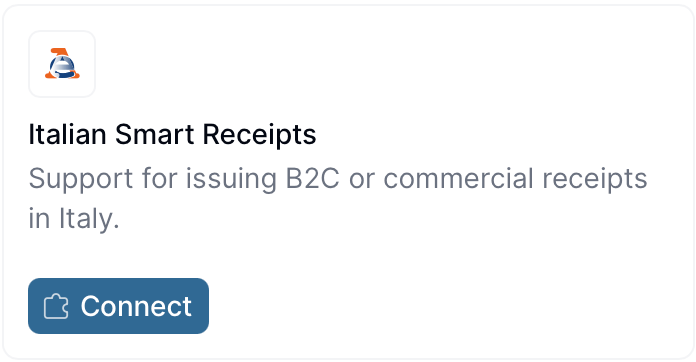 Click the **Configure** button on the app, and choose the "Post-registration workflow" we created in the previous step.
Click the **Save** button.
This workflow will issue a registration request for a supplier to complete in order to issue receipts through the AdE.
Copy and paste into a new [Empty Party workflow](https://console.invopop.com/redirect/workflows/new?template=empty-party) code view.
```json Example Smart Receipts register supplier workflow theme={"system"}
{
"name": "Smart Receipts register supplier",
"description": "Register a supplier with AdE",
"schema": "org/party",
"steps": [
{
"id": "1a1be400-2b32-11f0-984e-0542d5f28f0b",
"name": "Sign envelope",
"provider": "silo.close"
},
{
"id": "de116bb0-25b4-11f0-864a-193f213df097",
"name": "Register supplier with AdE",
"provider": "ticket-it.register"
},
{
"id": "e0a1b380-25b4-11f0-864a-193f213df097",
"name": "Set state",
"provider": "silo.state",
"summary": "Set state to `processing`{.state .processing}",
"config": {
"state": "processing"
}
}
],
"rescue": [
{
"id": "1deb1470-2b32-11f0-984e-0542d5f28f0b",
"name": "Set state",
"provider": "silo.state",
"summary": "Set state to `error`{.state .error}",
"config": {
"state": "error"
}
}
]
}
```
Before starting, review the [workflows guide](/guides/workflows) to understand the general setup process.
In [Console](https://console.invopop.com), create a new workflow and choose [Empty Party workflow](https://console.invopop.com/redirect/workflows/new?template=empty-party) as the base. Then name the workflow with a descriptive label such as "Smart Receipts Register Supplier".
The new workflow will need to perform three steps:
* **Sign envelope**
* **Register supplier with AdE**
* **Set state** - select `Processing`.
Add any additional steps you may need, and save the new workflow.
## Register a supplier
You can register suppliers either manually via the Invopop Console or programmatically via the API. The process is essentially the same. We'll demonstrate the manual process first, followed by the [API flow](#register-a-supplier-via-the-api).
Suppliers in Italy using this system must generate and provide their [AdE](https://ivaservizi.agenziaentrate.gov.it/portale/)
credentials so that invoices can be processed on their behalf. This is not an automated service and can only be
performed manually by a representative of the supplier.
1. Navigate to **Parties** → **Suppliers** in the sidebar
2. Click **+ New Supplier**
3. In the editor, enter the supplier details
Here's an example using test data (only valid for sandbox environments):
```json theme={"system"}
{
"$schema": "https://gobl.org/draft-0/org/party",
"uuid": "018fbeda-bc61-7000-b66d-398ce3e21c43",
"name": "Milano Pizza",
"tax_id": {
"country": "IT",
"code": "48220010093"
},
"identities": [
{
"key": "it-fiscal-code",
"code": "MRTMTT91D08F205J"
}
]
}
```
You may notice that we included the Italian fiscal code in the supplier, this is not necessary at the moment but will be asked for, if not provided, during the registration process.
Tap **Build**, ensure there are no errors, and click **Save**.
We should now see the document. Find and click the **Select Workflow** button. Select the **Register Supplier** workflow created during setup, and click **Run Workflow**.
The execution should be successful, and the silo entry will now be in the `Processing` state. Tap the **Meta** tab to see the registration link:
Click the **Configure** button on the app, and choose the "Post-registration workflow" we created in the previous step.
Click the **Save** button.
This workflow will issue a registration request for a supplier to complete in order to issue receipts through the AdE.
Copy and paste into a new [Empty Party workflow](https://console.invopop.com/redirect/workflows/new?template=empty-party) code view.
```json Example Smart Receipts register supplier workflow theme={"system"}
{
"name": "Smart Receipts register supplier",
"description": "Register a supplier with AdE",
"schema": "org/party",
"steps": [
{
"id": "1a1be400-2b32-11f0-984e-0542d5f28f0b",
"name": "Sign envelope",
"provider": "silo.close"
},
{
"id": "de116bb0-25b4-11f0-864a-193f213df097",
"name": "Register supplier with AdE",
"provider": "ticket-it.register"
},
{
"id": "e0a1b380-25b4-11f0-864a-193f213df097",
"name": "Set state",
"provider": "silo.state",
"summary": "Set state to `processing`{.state .processing}",
"config": {
"state": "processing"
}
}
],
"rescue": [
{
"id": "1deb1470-2b32-11f0-984e-0542d5f28f0b",
"name": "Set state",
"provider": "silo.state",
"summary": "Set state to `error`{.state .error}",
"config": {
"state": "error"
}
}
]
}
```
Before starting, review the [workflows guide](/guides/workflows) to understand the general setup process.
In [Console](https://console.invopop.com), create a new workflow and choose [Empty Party workflow](https://console.invopop.com/redirect/workflows/new?template=empty-party) as the base. Then name the workflow with a descriptive label such as "Smart Receipts Register Supplier".
The new workflow will need to perform three steps:
* **Sign envelope**
* **Register supplier with AdE**
* **Set state** - select `Processing`.
Add any additional steps you may need, and save the new workflow.
## Register a supplier
You can register suppliers either manually via the Invopop Console or programmatically via the API. The process is essentially the same. We'll demonstrate the manual process first, followed by the [API flow](#register-a-supplier-via-the-api).
Suppliers in Italy using this system must generate and provide their [AdE](https://ivaservizi.agenziaentrate.gov.it/portale/)
credentials so that invoices can be processed on their behalf. This is not an automated service and can only be
performed manually by a representative of the supplier.
1. Navigate to **Parties** → **Suppliers** in the sidebar
2. Click **+ New Supplier**
3. In the editor, enter the supplier details
Here's an example using test data (only valid for sandbox environments):
```json theme={"system"}
{
"$schema": "https://gobl.org/draft-0/org/party",
"uuid": "018fbeda-bc61-7000-b66d-398ce3e21c43",
"name": "Milano Pizza",
"tax_id": {
"country": "IT",
"code": "48220010093"
},
"identities": [
{
"key": "it-fiscal-code",
"code": "MRTMTT91D08F205J"
}
]
}
```
You may notice that we included the Italian fiscal code in the supplier, this is not necessary at the moment but will be asked for, if not provided, during the registration process.
Tap **Build**, ensure there are no errors, and click **Save**.
We should now see the document. Find and click the **Select Workflow** button. Select the **Register Supplier** workflow created during setup, and click **Run Workflow**.
The execution should be successful, and the silo entry will now be in the `Processing` state. Tap the **Meta** tab to see the registration link:
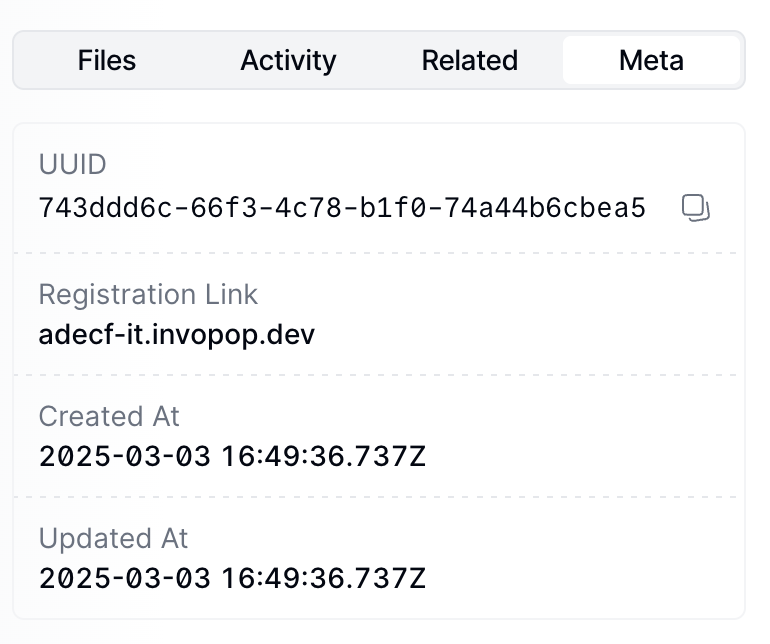 You can access the registration link via the API by [fetching the silo
entry](/api-ref/silo/entries/fetch-an-entry) and reading the `meta` row where
the `key` is set to `registration-link`.
Tap the registration link and a new browser window will be presented with a form to upload the credentials for the supplier. Note that this form can be shared directly with the supplier if required.
You can access the registration link via the API by [fetching the silo
entry](/api-ref/silo/entries/fetch-an-entry) and reading the `meta` row where
the `key` is set to `registration-link`.
Tap the registration link and a new browser window will be presented with a form to upload the credentials for the supplier. Note that this form can be shared directly with the supplier if required.
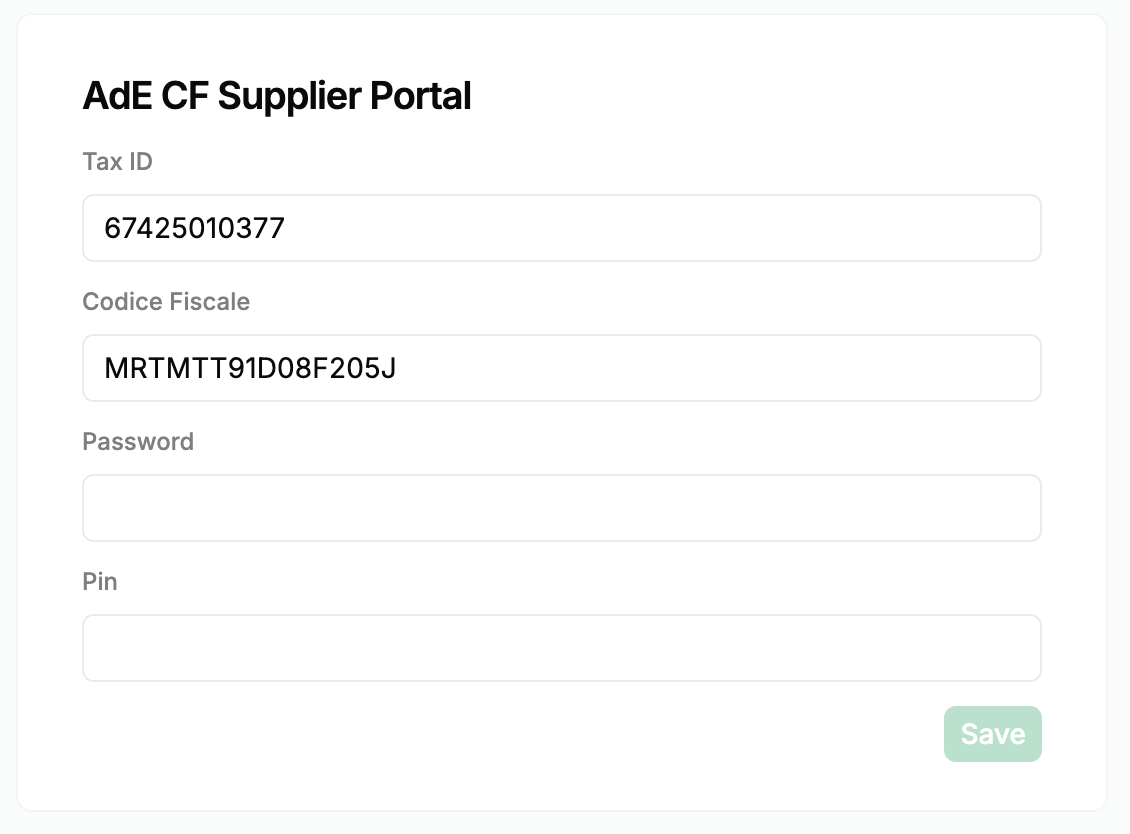 The details from this form are sent securely to our local partner who will be responsible for sending them to the AdE.
We will update the supplier with the provided *codice fiscale* for future use but will not store any type of credentials.
These credentials will expire every 90 days. You must first update your credentials on the official AdE web portal, then enter these new credentials in our registration form. You can use the same registration link to update your credentials.
At this point, you're ready to start issuing receipts on behalf of the supplier. Head over to the [Smart Receipts issuing guide](/guides/it-ticket) to continue.
## Register a supplier via the API
The whole registration process can also be completed programmatically. This is useful in [white-label](/guides/white-label) setups where you want to collect the supplier's credentials inside your own product instead of sharing Invopop's hosted form.
Use the [Create an entry](/api-ref/silo/entries/create-an-entry-put) endpoint to upload the supplier [party](https://docs.gobl.org/draft-0/org/party), like the example in the previous section. The party must include the company `name` and an Italian `tax_id` (Partita IVA). Optionally include the `it-fiscal-code` identity and an email address to pre-fill the registration form.
Send the supplier to the registration workflow using the [Create a job](/api-ref/transform/jobs/create-a-job-put) endpoint with the IDs of the **silo entry** and the **supplier registration workflow** created during setup.
[Fetch the silo entry](/api-ref/silo/entries/fetch-an-entry) and read the `meta` row where the `key` is `registration-link`. The `link_url` will look like this:
```
https://ticket-it.invopop.com/register/{owner_id}/{entry_id}?exp={expiry}&sig={signature}
```
The URL is signed: the `exp` and `sig` query parameters are validated on every request, so always use the `link_url` exactly as returned. Requests with missing or modified parameters are rejected.
Opening the link in a browser presents the hosted registration form. To submit the credentials from your own product instead, send a `PUT` request to the `link_url` (keeping the query parameters intact) with the following JSON body:
```json theme={"system"}
{
"fiscal_id": "48220010093",
"codice_fiscale": "MRTMTT91D08F205J",
"email": "supplier@example.com",
"password": "supplier-ade-password",
"pin": "12345678"
}
```
| Field | Required | Description |
| ---------------- | -------- | ---------------------------------------------------------------------------------------- |
| `fiscal_id` | Yes | The supplier's Partita IVA, without the `IT` country prefix. |
| `codice_fiscale` | Yes | The supplier's *codice fiscale*. It will be stored in the supplier party for future use. |
| `password` | Yes | The supplier's AdE portal password. |
| `pin` | Yes | The supplier's AdE portal PIN. |
| `email` | No | Email address to receive AdE notifications. Updates the supplier party if changed. |
A `200` response means the registration is complete and the post-registration workflow configured in the app will be launched. Errors are returned as `{"error": ""}` with a `400` status for client errors (invalid or expired link, missing fields) or `500` for server errors.
The same endpoint can be called again with the same link to update the supplier's credentials when they expire.
## FAQ
Provide the supplier's Partita IVA and Codice Fiscale (where different) in their party configuration. No certificate upload is needed — Invopop signs and submits to SDI as the supplier's intermediary.
No supplier certificates are required. Invopop signs FatturaPA submissions with its own Agenzia delle Entrate-recognized intermediary credentials. Only the Partita IVA and routing metadata are stored.
Run the Smart Receipts Register Supplier workflow with the supplier's Partita IVA. Invopop registers the merchant with Agenzia delle Entrate's AdE CF service so issuance can begin immediately.
None at the supplier level. Invopop authenticates to AdE CF via its intermediary credentials. The supplier's Partita IVA is the only routing identifier needed.
More available in our [Italy FAQ](/faq/italy) section
***
| | |
| ---------- | --------------------------------------------------------------------------------------------------------------------------------------------------------------------------------------------------------------------------------------------------------------------------------------------------------------------------------------------------------------------------------------- |
| Compliance | [Invoicing compliance in Italy](/compliance/italy)
The details from this form are sent securely to our local partner who will be responsible for sending them to the AdE.
We will update the supplier with the provided *codice fiscale* for future use but will not store any type of credentials.
These credentials will expire every 90 days. You must first update your credentials on the official AdE web portal, then enter these new credentials in our registration form. You can use the same registration link to update your credentials.
At this point, you're ready to start issuing receipts on behalf of the supplier. Head over to the [Smart Receipts issuing guide](/guides/it-ticket) to continue.
## Register a supplier via the API
The whole registration process can also be completed programmatically. This is useful in [white-label](/guides/white-label) setups where you want to collect the supplier's credentials inside your own product instead of sharing Invopop's hosted form.
Use the [Create an entry](/api-ref/silo/entries/create-an-entry-put) endpoint to upload the supplier [party](https://docs.gobl.org/draft-0/org/party), like the example in the previous section. The party must include the company `name` and an Italian `tax_id` (Partita IVA). Optionally include the `it-fiscal-code` identity and an email address to pre-fill the registration form.
Send the supplier to the registration workflow using the [Create a job](/api-ref/transform/jobs/create-a-job-put) endpoint with the IDs of the **silo entry** and the **supplier registration workflow** created during setup.
[Fetch the silo entry](/api-ref/silo/entries/fetch-an-entry) and read the `meta` row where the `key` is `registration-link`. The `link_url` will look like this:
```
https://ticket-it.invopop.com/register/{owner_id}/{entry_id}?exp={expiry}&sig={signature}
```
The URL is signed: the `exp` and `sig` query parameters are validated on every request, so always use the `link_url` exactly as returned. Requests with missing or modified parameters are rejected.
Opening the link in a browser presents the hosted registration form. To submit the credentials from your own product instead, send a `PUT` request to the `link_url` (keeping the query parameters intact) with the following JSON body:
```json theme={"system"}
{
"fiscal_id": "48220010093",
"codice_fiscale": "MRTMTT91D08F205J",
"email": "supplier@example.com",
"password": "supplier-ade-password",
"pin": "12345678"
}
```
| Field | Required | Description |
| ---------------- | -------- | ---------------------------------------------------------------------------------------- |
| `fiscal_id` | Yes | The supplier's Partita IVA, without the `IT` country prefix. |
| `codice_fiscale` | Yes | The supplier's *codice fiscale*. It will be stored in the supplier party for future use. |
| `password` | Yes | The supplier's AdE portal password. |
| `pin` | Yes | The supplier's AdE portal PIN. |
| `email` | No | Email address to receive AdE notifications. Updates the supplier party if changed. |
A `200` response means the registration is complete and the post-registration workflow configured in the app will be launched. Errors are returned as `{"error": ""}` with a `400` status for client errors (invalid or expired link, missing fields) or `500` for server errors.
The same endpoint can be called again with the same link to update the supplier's credentials when they expire.
## FAQ
Provide the supplier's Partita IVA and Codice Fiscale (where different) in their party configuration. No certificate upload is needed — Invopop signs and submits to SDI as the supplier's intermediary.
No supplier certificates are required. Invopop signs FatturaPA submissions with its own Agenzia delle Entrate-recognized intermediary credentials. Only the Partita IVA and routing metadata are stored.
Run the Smart Receipts Register Supplier workflow with the supplier's Partita IVA. Invopop registers the merchant with Agenzia delle Entrate's AdE CF service so issuance can begin immediately.
None at the supplier level. Invopop authenticates to AdE CF via its intermediary credentials. The supplier's Partita IVA is the only routing identifier needed.
More available in our [Italy FAQ](/faq/italy) section
***
| | |
| ---------- | --------------------------------------------------------------------------------------------------------------------------------------------------------------------------------------------------------------------------------------------------------------------------------------------------------------------------------------------------------------------------------------- |
| Compliance | [Invoicing compliance in Italy](/compliance/italy)
[Compliance timeline](/timelines/italy) |
| Apps | [SDI Italy](/apps/sdi-italy)
[Smart Receipts Italy](/apps/smart-receipts-italy) |
| Guides | [SDI sending guide](/guides/it-sdi-sending)
[SDI receiving guide](/guides/it-sdi-receiving)
[Smart Receipts supplier registration](/guides/it-ticket-supplier)
[Smart Receipts issuing guide](/guides/it-ticket) |
| FAQ | [Italy FAQ](/faq/italy) |
| GOBL | [Italy Tax Regime](https://docs.gobl.org/regimes/it)
[Italy SDI FatturaPA Addon](https://docs.gobl.org/addons/it-sdi-v1)
[Italy AdE Ticket Addon](https://docs.gobl.org/addons/it-ticket-v1) |
| GitHub | [gobl.fatturapa](https://github.com/invopop/gobl.fatturapa) |
Ask and answer questions about invoicing in Italy →