> ## Documentation Index
> Fetch the complete documentation index at: https://docs.invopop.com/llms.txt
> Use this file to discover all available pages before exploring further.
# PDF Generator Guide
> How to issue simple PDF invoices globally.
## Introduction
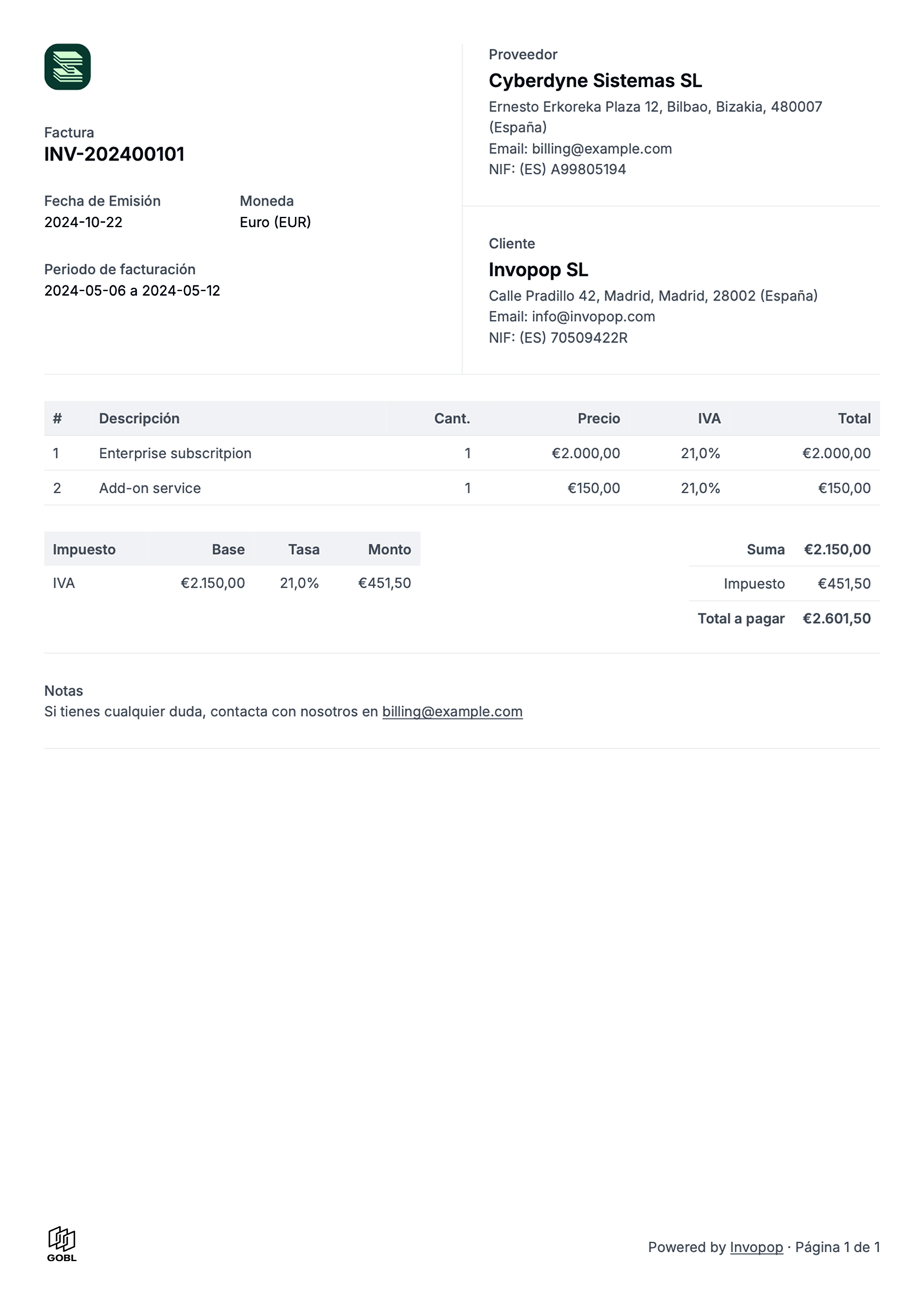
This guide will walk you through the process of generating a simple PDF invoice you can send to your customers. It will also explain all the configuration options available in the "Generate PDF" workflow step.
PDF invoices are valid for tax regimes that don't require e-reporting or e-invoicing, and serves as a useful example from which to create your own workflows.
Once completed, the workflow will work with any GOBL invoice produced for any country in the world.
 ## Prerequisites
You'll need the following data to issue basic PDF invoices:
* **Supplier details:** fiscal details of the issuer.
* **Customer details:** fiscal details of who is receiving for B2B invoices.
* **Items:** list of products or services being sold, including quantities and prices.
* **Taxes & Rates:** knowing how these apply to each item.
* **Series:** a series is a counter with number formatting details to be able to generate a code.
## Setup
Issuing PDF invoices with Invopop requires very little preparation. We assume that you already have access to the [Invopop Console](https://console.invopop.com) and know how to [create a workflow](/guides/features/workflows).
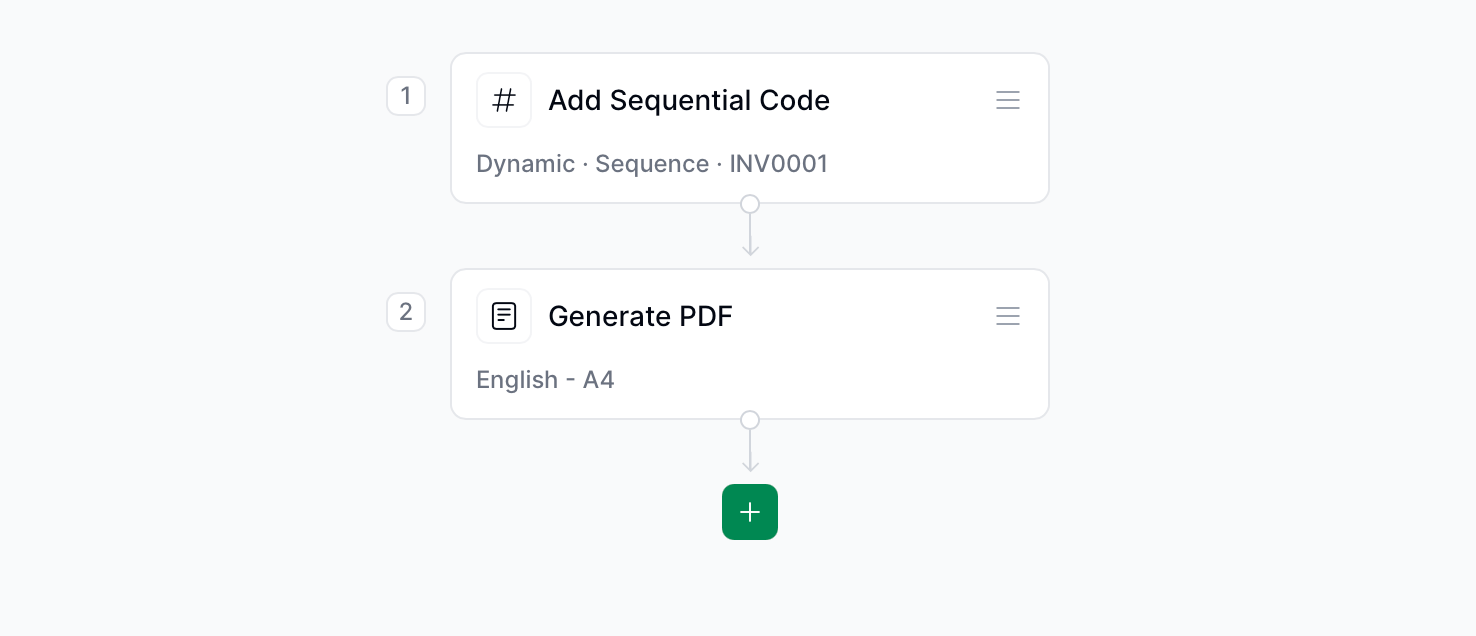
Basic workflow to generate a PDF invoice
Copy and paste into a new [Empty Invoice workflow](https://console.invopop.com/redirect/workflows/new?template=empty-invoice) code view.
```json Example PDF invoice workflow theme={"system"}
{
"name": "PDF invoice",
"description": "Add a sequential code and generate a PDF",
"schema": "bill/invoice",
"steps": [
{
"id": "6b16c200-a75f-11ef-ba08-91f336761c6c",
"name": "Add sequential code",
"provider": "sequence.enumerate",
"summary": "Dynamic · Invoice · 000001",
"config": {
"padding": 6,
"start": 1,
"name": "Invoice"
}
},
{
"id": "fc75e4f0-8721-11ef-a962-73e3f2037a52",
"name": "Sign envelope",
"provider": "silo.close"
},
{
"id": "c61adaa0-7b55-11ef-bffc-d9a10ebf9f89",
"name": "Generate PDF",
"config": {
"logo_height": 40,
"locale": "en",
"date_format": "%Y-%m-%d"
},
"summary": "English",
"provider": "pdf"
}
],
"rescue": [
{
"id": "9a7b3d50-1358-11ef-af96-a18cfb3774fa",
"name": "Set state",
"config": {
"state": "error"
},
"provider": "silo.state",
"summary": "Set state to `error`{.state .error}"
}
]
}
```
In [Console](https://console.invopop.com) create a new workflow and select [Empty Invoice workflow](https://console.invopop.com/redirect/workflows/new?template=empty-invoice) in the template selector, then add the following steps:
1. **Add sequential code** - select the **dynamic** sequence option and set the name.
2. **Sign envelope** - signs the [GOBL](https://docs.gobl.org) document, preventing further changes.
3. **Generate PDF** - configure the logo and language according to your needs.
Finally, in the Error Handling area, add the **Set state** action and select status `Error`.
## Prerequisites
You'll need the following data to issue basic PDF invoices:
* **Supplier details:** fiscal details of the issuer.
* **Customer details:** fiscal details of who is receiving for B2B invoices.
* **Items:** list of products or services being sold, including quantities and prices.
* **Taxes & Rates:** knowing how these apply to each item.
* **Series:** a series is a counter with number formatting details to be able to generate a code.
## Setup
Issuing PDF invoices with Invopop requires very little preparation. We assume that you already have access to the [Invopop Console](https://console.invopop.com) and know how to [create a workflow](/guides/features/workflows).
Basic workflow to generate a PDF invoice
Copy and paste into a new [Empty Invoice workflow](https://console.invopop.com/redirect/workflows/new?template=empty-invoice) code view.
```json Example PDF invoice workflow theme={"system"}
{
"name": "PDF invoice",
"description": "Add a sequential code and generate a PDF",
"schema": "bill/invoice",
"steps": [
{
"id": "6b16c200-a75f-11ef-ba08-91f336761c6c",
"name": "Add sequential code",
"provider": "sequence.enumerate",
"summary": "Dynamic · Invoice · 000001",
"config": {
"padding": 6,
"start": 1,
"name": "Invoice"
}
},
{
"id": "fc75e4f0-8721-11ef-a962-73e3f2037a52",
"name": "Sign envelope",
"provider": "silo.close"
},
{
"id": "c61adaa0-7b55-11ef-bffc-d9a10ebf9f89",
"name": "Generate PDF",
"config": {
"logo_height": 40,
"locale": "en",
"date_format": "%Y-%m-%d"
},
"summary": "English",
"provider": "pdf"
}
],
"rescue": [
{
"id": "9a7b3d50-1358-11ef-af96-a18cfb3774fa",
"name": "Set state",
"config": {
"state": "error"
},
"provider": "silo.state",
"summary": "Set state to `error`{.state .error}"
}
]
}
```
In [Console](https://console.invopop.com) create a new workflow and select [Empty Invoice workflow](https://console.invopop.com/redirect/workflows/new?template=empty-invoice) in the template selector, then add the following steps:
1. **Add sequential code** - select the **dynamic** sequence option and set the name.
2. **Sign envelope** - signs the [GOBL](https://docs.gobl.org) document, preventing further changes.
3. **Generate PDF** - configure the logo and language according to your needs.
Finally, in the Error Handling area, add the **Set state** action and select status `Error`.
 ### Configuration options
Once you have connected the "PDF Generator" app, you can configure the "Generate PDF" workflow step. The following options are available:
#### Content section
### Configuration options
Once you have connected the "PDF Generator" app, you can configure the "Generate PDF" workflow step. The following options are available:
#### Content section
 | | |
| --------------- | -------------------------------------------------------------------------------------------------------------------------------------------------------------------------------------------------------------------------------------------------------------------------------------------------------------------------------------------------------------------------------------------------------------------------------------------------------------------------------------------------------------------------- |
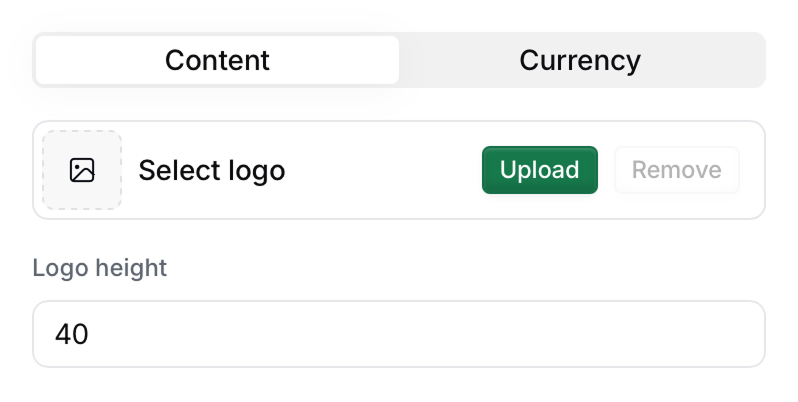
| **Upload logo** | Upload an image which will be used as a logo in the document. A square or horizontal logo layout in PNG format is recommended. `PNG`, `GIF`, `JPG` and `SVG` file types are supported. For bitmap images, it is recommended that the logo is at least twice the size of the height for it to print in high quality. If you need to upload a different logo for each supplier, include the `logos` field in the party entry [as detailed in the FAQ](/guides/pdf-invoice#how-can-i-add-a-different-logo-for-each-supplier). |
| **Logo height** | Height for the logo in pixels. There's 72 pixels in an inch and 37 pixels in a centimeter. The default height is 40 pixels (a little over 1cm) |
| | |
| --------------- | -------------------------------------------------------------------------------------------------------------------------------------------------------------------------------------------------------------------------------------------------------------------------------------------------------------------------------------------------------------------------------------------------------------------------------------------------------------------------------------------------------------------------- |
| **Upload logo** | Upload an image which will be used as a logo in the document. A square or horizontal logo layout in PNG format is recommended. `PNG`, `GIF`, `JPG` and `SVG` file types are supported. For bitmap images, it is recommended that the logo is at least twice the size of the height for it to print in high quality. If you need to upload a different logo for each supplier, include the `logos` field in the party entry [as detailed in the FAQ](/guides/pdf-invoice#how-can-i-add-a-different-logo-for-each-supplier). |
| **Logo height** | Height for the logo in pixels. There's 72 pixels in an inch and 37 pixels in a centimeter. The default height is 40 pixels (a little over 1cm) |
 | | |
| --------------- | ------------------------------------------------------------------------------------------------------------------------------------------------------------------------------------------------------------------------------------------------------------------------------------------------------------------------------------------------------------------------------------------------------------------------------------------------------------------------------------------------------ |
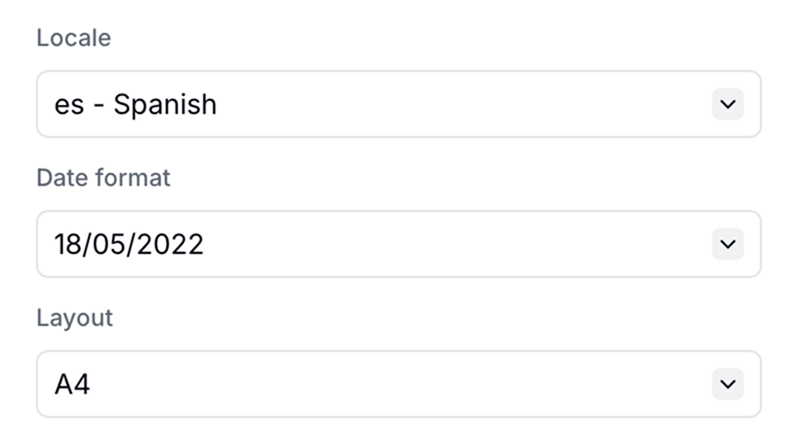
| **Locale** | Sets the language and formatting conventions used in the PDF. We add new locales based on the demand of our customers. |
| **Date format** | Controls how dates are displayed. Options include: `YYYY-MM-DD`, `DD-MM-YYYY`, `MM-DD-YYYY`, `DD.MM.YYYY`, `MM.DD.YYYY` |
| **Time format** | Controls how times are displayed in datetime fields. Options include: `20:45` (24-hour hh:mm), `20:45:03` (24-hour hh:mm:ss), `8:45 PM` (12-hour hh:mm), `8:45:00 PM` (12-hour hh:mm:ss). When set, the date and time are joined with a `·` separator. |
| **Layout** | Defines the physical page size for regional printing standards. Options include:
| | |
| --------------- | ------------------------------------------------------------------------------------------------------------------------------------------------------------------------------------------------------------------------------------------------------------------------------------------------------------------------------------------------------------------------------------------------------------------------------------------------------------------------------------------------------ |
| **Locale** | Sets the language and formatting conventions used in the PDF. We add new locales based on the demand of our customers. |
| **Date format** | Controls how dates are displayed. Options include: `YYYY-MM-DD`, `DD-MM-YYYY`, `MM-DD-YYYY`, `DD.MM.YYYY`, `MM.DD.YYYY` |
| **Time format** | Controls how times are displayed in datetime fields. Options include: `20:45` (24-hour hh:mm), `20:45:03` (24-hour hh:mm:ss), `8:45 PM` (12-hour hh:mm), `8:45:00 PM` (12-hour hh:mm:ss). When set, the date and time are joined with a `·` separator. |
| **Layout** | Defines the physical page size for regional printing standards. Options include: - `A4`: used in Europe and various other countries.
- `Letter`: used in United States, Canada, Mexico, Philippines, and other countries in Latin America.
- `DIN5008`: used in Germany as the standard for documents that will present information within an envelope window. If you select this option, the customer's information (name and address) will be placed within this window.
|
 | | |
| ------------------------ | ------------------------------------------------------------------------------------------------------------------------- |
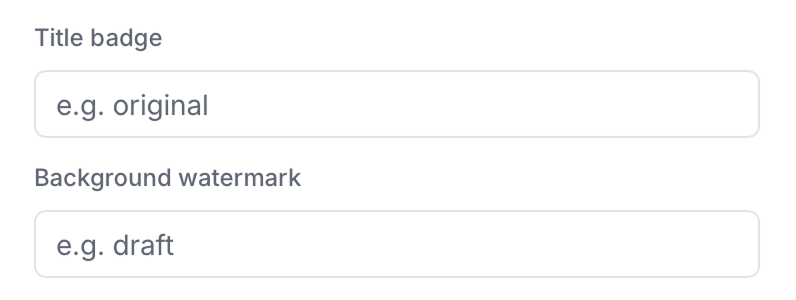
| **Title badge** | Contextual labels such as "original", "copy", "draft", or "internal" |
| **Background watermark** | Text that will be displayed in the background of the document such as "draft", "review", "internal", "confidential", etc. |
| | |
| ------------------------ | ------------------------------------------------------------------------------------------------------------------------- |
| **Title badge** | Contextual labels such as "original", "copy", "draft", or "internal" |
| **Background watermark** | Text that will be displayed in the background of the document such as "draft", "review", "internal", "confidential", etc. |
 | | |
| -------------------------------- | --------------------------------------------------------------------------------------------------------------------------------------------------------------------------------------------------------------------------------------------------------------------------------------------------------------------------- |
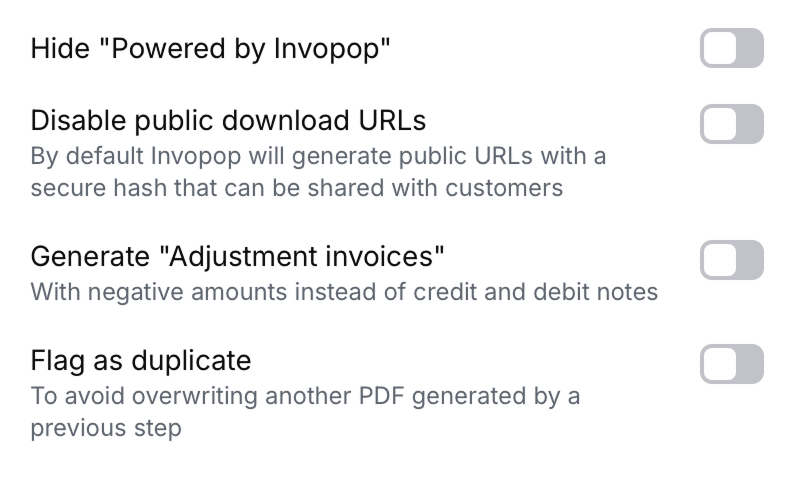
| **Hide "Powered by Invopop"** | Toggle to hide the "Powered by Invopop" attribution. This setting does not remove the GOBL logo from the PDF. |
| **Disable public download URLs** | Security control to disable the creation of public download URLs for generated PDFs, preventing external sharing via link. |
| **Adjustment invoices** | Toggle to generate "adjustment invoices" using negative values instead of traditional credit and debit notes. Useful for countries that don't officially recognise the concept of credit or debit notes such as Spain and Poland [as detailed in the FAQ](/guides/pdf-invoice#why-would-i-want-to-use-adjustment-invoices). |
| **Flag as duplicate** | Use when you want to generate a duplicate invoice. If not selected and the silo entry already contains a PDF, the workflow will overwrite the existing PDF. |
#### Currency section
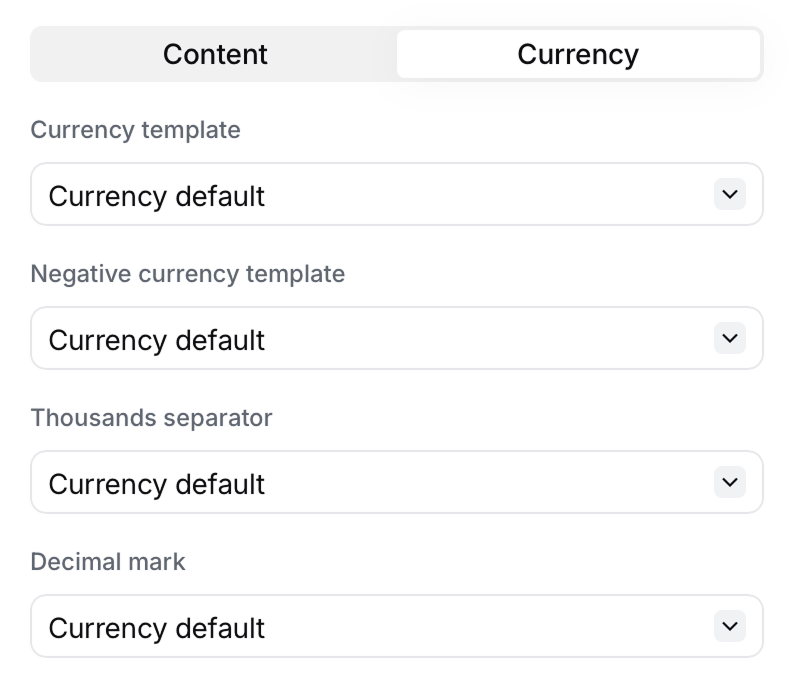
**Currency formatting** allows overriding the default currency formatting normally dictated by the document's own currency.
| | |
| -------------------------------- | --------------------------------------------------------------------------------------------------------------------------------------------------------------------------------------------------------------------------------------------------------------------------------------------------------------------------- |
| **Hide "Powered by Invopop"** | Toggle to hide the "Powered by Invopop" attribution. This setting does not remove the GOBL logo from the PDF. |
| **Disable public download URLs** | Security control to disable the creation of public download URLs for generated PDFs, preventing external sharing via link. |
| **Adjustment invoices** | Toggle to generate "adjustment invoices" using negative values instead of traditional credit and debit notes. Useful for countries that don't officially recognise the concept of credit or debit notes such as Spain and Poland [as detailed in the FAQ](/guides/pdf-invoice#why-would-i-want-to-use-adjustment-invoices). |
| **Flag as duplicate** | Use when you want to generate a duplicate invoice. If not selected and the silo entry already contains a PDF, the workflow will overwrite the existing PDF. |
#### Currency section
**Currency formatting** allows overriding the default currency formatting normally dictated by the document's own currency.
 | | |
| ------------------------------ | ------------------------------------------------------------------------------------------------------------------------------------------------------------------------ |
| **Currency template** | Whether the currency symbol should be before or after the number, e.g. `€100` or `100€`. |
| **Format for negative values** | Whether the negative sign should be before or after the number, e.g. `€-100` or `-€100`. Parenthesis `- €(100)` can also be used according to some accounting standards. |
| **Thousands separator** | Separator to improve the readability of the number, e.g. `1,000`, `1.000`, `1 000` or `1_000`. |
| **Decimal mark** | Separator for the decimal part of the number, e.g. `1.00` or `1,00`. |
### Workflow args
All configuration options above can also be set programmatically using workflow step args. This is useful when you need to dynamically override PDF settings per job via the API.
| Arg Key | Type | Description |
| --------------------- | ------- | -------------------------------------------------------------------------------------------------------------------- |
| `pdf-logo-url` | string | URL of the supplier logo. Supports regular URLs and data URLs. |
| `pdf-logo-height` | integer | Height of the logo in pixels (default: 40). |
| `pdf-locale` | string | Two-letter language code, e.g. `en`, `es`, `de`. |
| `pdf-date-format` | string | Date format using `%Y`, `%m`, `%d` tokens, e.g. `%d/%m/%Y`. |
| `pdf-time-format` | string | Time format using `%H`, `%M`, `%S` (24-hour) or `%I`, `%M`, `%S`, `%p` (12-hour) tokens, e.g. `%H:%M` or `%I:%M %p`. |
| `pdf-layout` | string | Page layout: `A4`, `Letter`, or `DIN5008`. |
| `pdf-label` | string | Title badge text, e.g. `Paid`, `Original`. |
| `pdf-watermark` | string | Background watermark text, e.g. `Draft`, `Confidential`. |
| `pdf-hide-promo` | boolean | Set to `true` to hide the "Powered by Invopop" text. |
| `pdf-adjustment-mode` | boolean | Set to `true` to use negative amounts in credit notes. |
| `pdf-duplicate` | boolean | Set to `true` to generate a duplicate PDF without overwriting the existing one. |
## Running
Use the following example [GOBL Invoices](https://docs.gobl.org/draft-0/bill/invoice) inside the [Invopop Console](https://console.invopop.com) or via the API to create new silo entries. Once a silo entry has been stored, you can create a new job to run the "PDF Invoice" workflow you just created.
```json A simple invoice for a VAT registered supplier in the United Kingdom expandable theme={"system"}
{
"$schema": "https://gobl.org/draft-0/bill/invoice",
"currency": "GBP",
"series": "TEST",
"supplier": {
"tax_id": {
"country": "GB",
"code": "844281425"
},
"name": "BrightTech Solutions Ltd.",
"emails": [
{
"addr": "billing@brighttech.co.uk"
}
],
"addresses": [
{
"num": "123",
"street": "Innovation Park",
"locality": "Cambridge",
"code": "CB1 2AB",
"country": "GB"
}
]
},
"customer": {
"tax_id": {
"country": "GB",
"code": "350983637"
},
"name": "GreenWave Energy Ltd.",
"emails": [
{
"addr": "info@greenwave.co.uk"
}
],
"addresses": [
{
"num": "45",
"street": "Riverside Business Park",
"locality": "London",
"code": "SW1A 1AA",
"country": "GB"
}
]
},
"lines": [
{
"quantity": 50,
"item": {
"name": "Thermal efficient mugs",
"price": "16.00"
},
"taxes": [
{
"cat": "VAT",
"rate": "standard"
}
]
}
]
}
```
```json Simple invoice for a VAT registered supplier in the United States expandable theme={"system"}
{
"$schema": "https://gobl.org/draft-0/bill/invoice",
"series": "SAMPLE",
"currency": "USD",
"tax": {
"prices_include": "ST"
},
"supplier": {
"name": "Provide One Inc.",
"tax_id": {
"country": "US"
},
"addresses": [
{
"num": "16",
"street": "Jessie Street",
"locality": "San Francisco",
"region": "CA",
"code": "94105",
"country": "US"
}
],
"emails": [
{
"addr": "billing@provideone.com"
}
]
},
"customer": {
"name": "Sample Consumer",
"emails": [
{
"addr": "email@sample.com"
}
]
},
"lines": [
{
"i": 1,
"quantity": "20",
"item": {
"name": "Development services",
"price": "90.00",
"unit": "h"
},
"discounts": [
{
"percent": "10%",
"reason": "Special discount"
}
],
"taxes": [
{
"cat": "ST",
"percent": "8.5%"
}
]
}
]
}
```
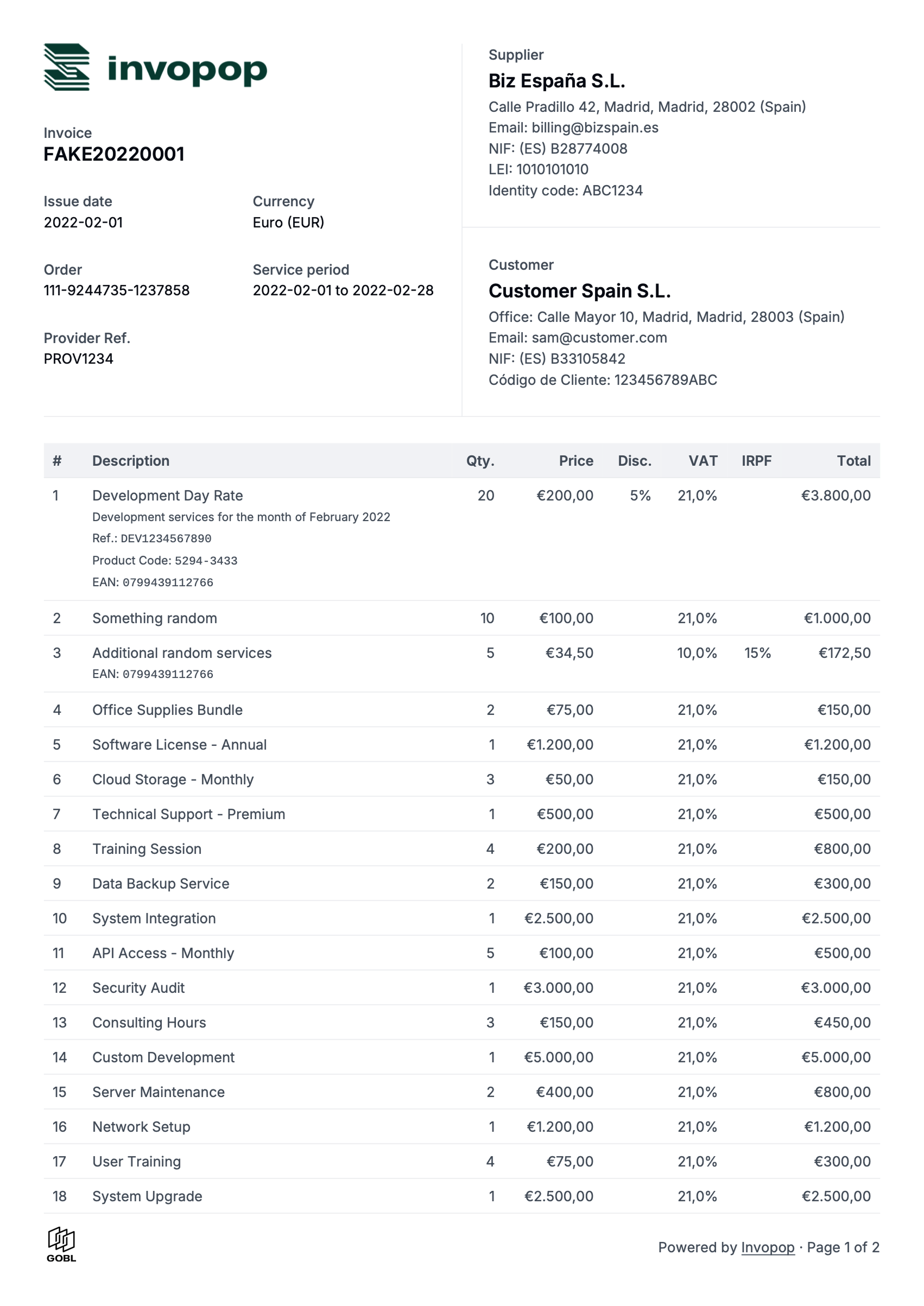
## Example PDF invoices
| | |
| ------------------------------ | ------------------------------------------------------------------------------------------------------------------------------------------------------------------------ |
| **Currency template** | Whether the currency symbol should be before or after the number, e.g. `€100` or `100€`. |
| **Format for negative values** | Whether the negative sign should be before or after the number, e.g. `€-100` or `-€100`. Parenthesis `- €(100)` can also be used according to some accounting standards. |
| **Thousands separator** | Separator to improve the readability of the number, e.g. `1,000`, `1.000`, `1 000` or `1_000`. |
| **Decimal mark** | Separator for the decimal part of the number, e.g. `1.00` or `1,00`. |
### Workflow args
All configuration options above can also be set programmatically using workflow step args. This is useful when you need to dynamically override PDF settings per job via the API.
| Arg Key | Type | Description |
| --------------------- | ------- | -------------------------------------------------------------------------------------------------------------------- |
| `pdf-logo-url` | string | URL of the supplier logo. Supports regular URLs and data URLs. |
| `pdf-logo-height` | integer | Height of the logo in pixels (default: 40). |
| `pdf-locale` | string | Two-letter language code, e.g. `en`, `es`, `de`. |
| `pdf-date-format` | string | Date format using `%Y`, `%m`, `%d` tokens, e.g. `%d/%m/%Y`. |
| `pdf-time-format` | string | Time format using `%H`, `%M`, `%S` (24-hour) or `%I`, `%M`, `%S`, `%p` (12-hour) tokens, e.g. `%H:%M` or `%I:%M %p`. |
| `pdf-layout` | string | Page layout: `A4`, `Letter`, or `DIN5008`. |
| `pdf-label` | string | Title badge text, e.g. `Paid`, `Original`. |
| `pdf-watermark` | string | Background watermark text, e.g. `Draft`, `Confidential`. |
| `pdf-hide-promo` | boolean | Set to `true` to hide the "Powered by Invopop" text. |
| `pdf-adjustment-mode` | boolean | Set to `true` to use negative amounts in credit notes. |
| `pdf-duplicate` | boolean | Set to `true` to generate a duplicate PDF without overwriting the existing one. |
## Running
Use the following example [GOBL Invoices](https://docs.gobl.org/draft-0/bill/invoice) inside the [Invopop Console](https://console.invopop.com) or via the API to create new silo entries. Once a silo entry has been stored, you can create a new job to run the "PDF Invoice" workflow you just created.
```json A simple invoice for a VAT registered supplier in the United Kingdom expandable theme={"system"}
{
"$schema": "https://gobl.org/draft-0/bill/invoice",
"currency": "GBP",
"series": "TEST",
"supplier": {
"tax_id": {
"country": "GB",
"code": "844281425"
},
"name": "BrightTech Solutions Ltd.",
"emails": [
{
"addr": "billing@brighttech.co.uk"
}
],
"addresses": [
{
"num": "123",
"street": "Innovation Park",
"locality": "Cambridge",
"code": "CB1 2AB",
"country": "GB"
}
]
},
"customer": {
"tax_id": {
"country": "GB",
"code": "350983637"
},
"name": "GreenWave Energy Ltd.",
"emails": [
{
"addr": "info@greenwave.co.uk"
}
],
"addresses": [
{
"num": "45",
"street": "Riverside Business Park",
"locality": "London",
"code": "SW1A 1AA",
"country": "GB"
}
]
},
"lines": [
{
"quantity": 50,
"item": {
"name": "Thermal efficient mugs",
"price": "16.00"
},
"taxes": [
{
"cat": "VAT",
"rate": "standard"
}
]
}
]
}
```
```json Simple invoice for a VAT registered supplier in the United States expandable theme={"system"}
{
"$schema": "https://gobl.org/draft-0/bill/invoice",
"series": "SAMPLE",
"currency": "USD",
"tax": {
"prices_include": "ST"
},
"supplier": {
"name": "Provide One Inc.",
"tax_id": {
"country": "US"
},
"addresses": [
{
"num": "16",
"street": "Jessie Street",
"locality": "San Francisco",
"region": "CA",
"code": "94105",
"country": "US"
}
],
"emails": [
{
"addr": "billing@provideone.com"
}
]
},
"customer": {
"name": "Sample Consumer",
"emails": [
{
"addr": "email@sample.com"
}
]
},
"lines": [
{
"i": 1,
"quantity": "20",
"item": {
"name": "Development services",
"price": "90.00",
"unit": "h"
},
"discounts": [
{
"percent": "10%",
"reason": "Special discount"
}
],
"taxes": [
{
"cat": "ST",
"percent": "8.5%"
}
]
}
]
}
```
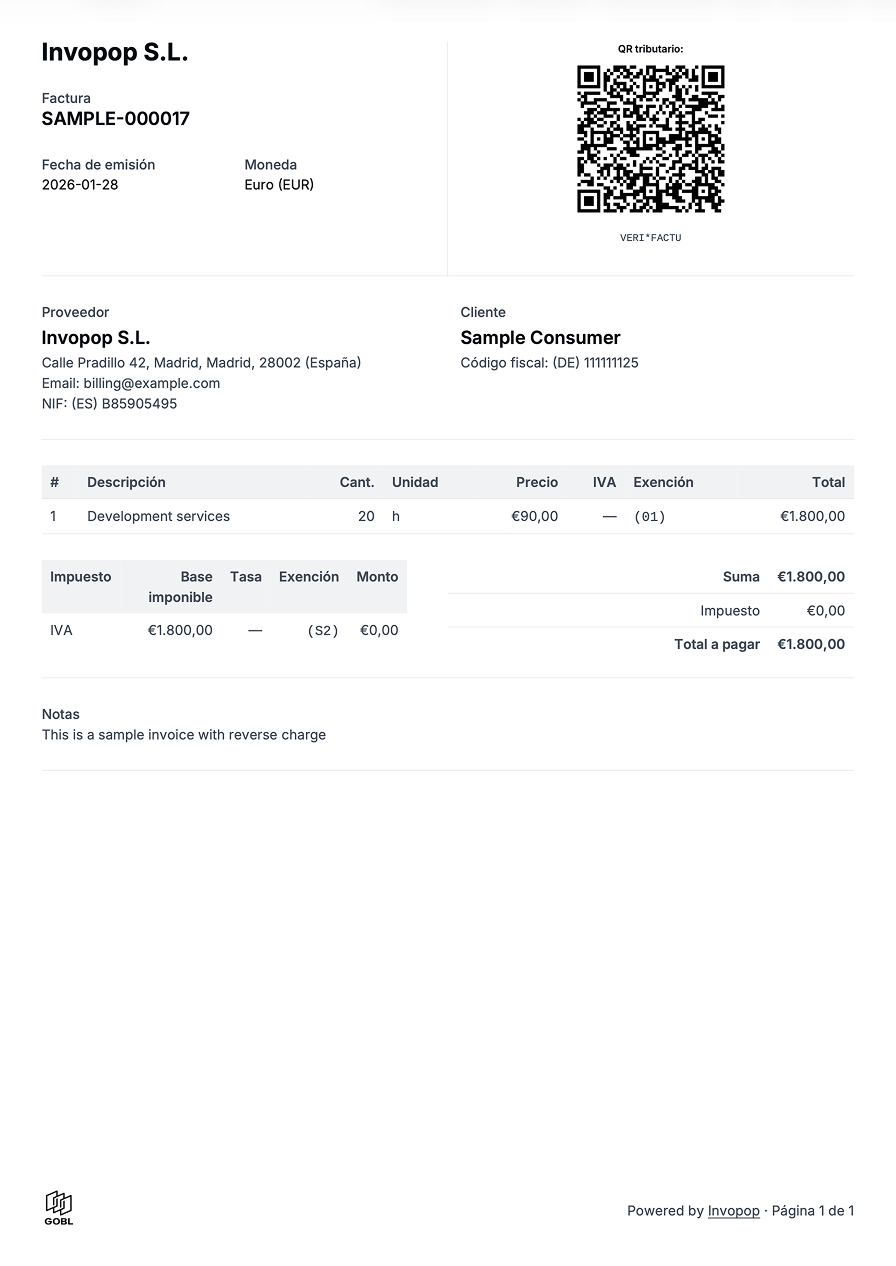
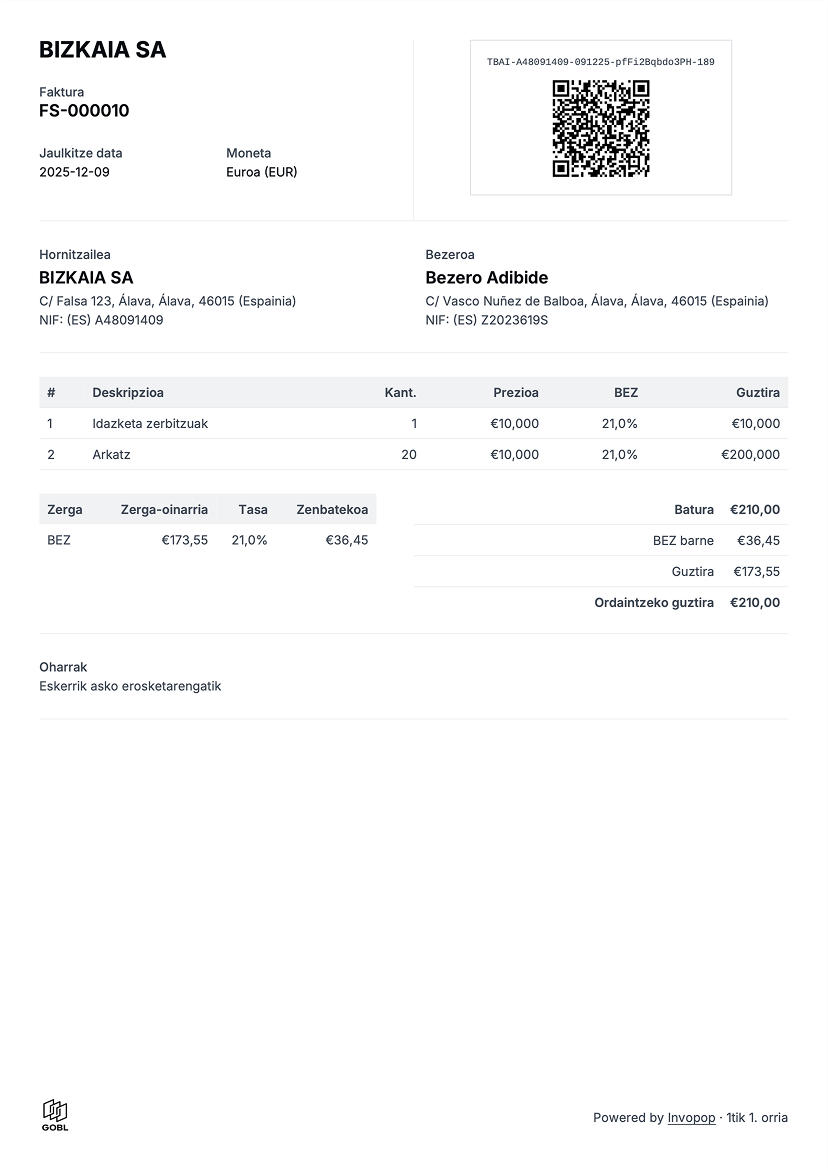
## Example PDF invoices
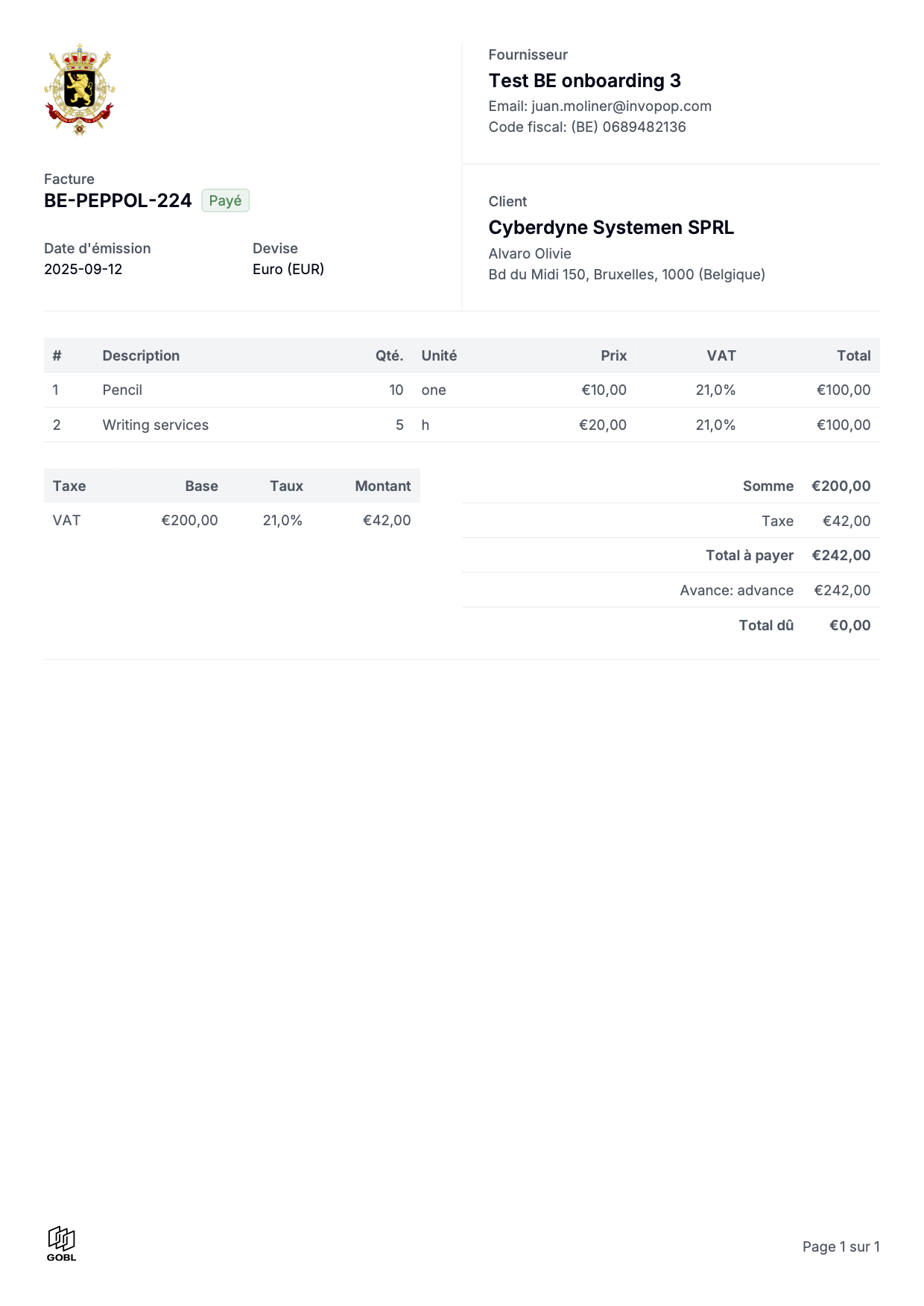
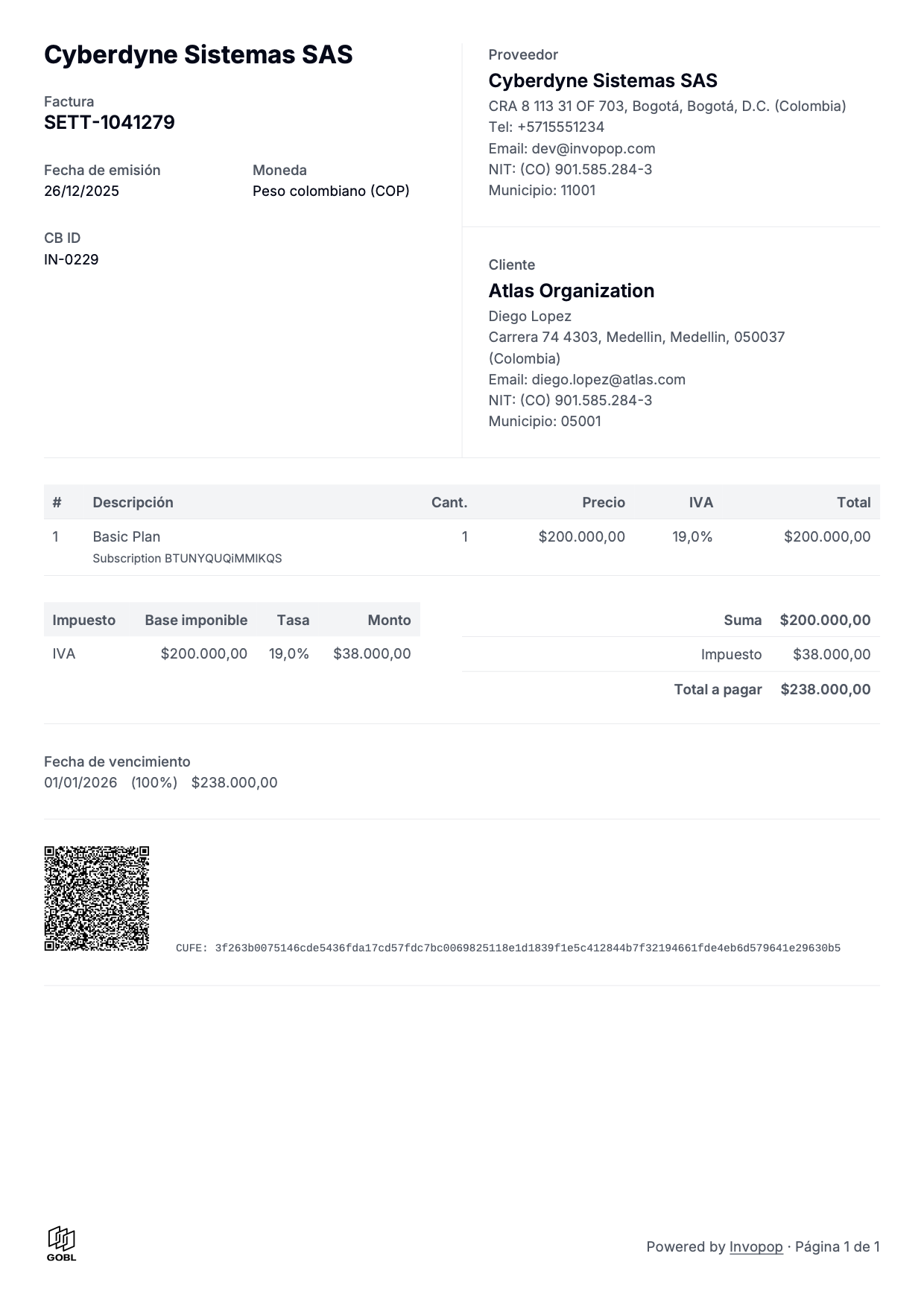
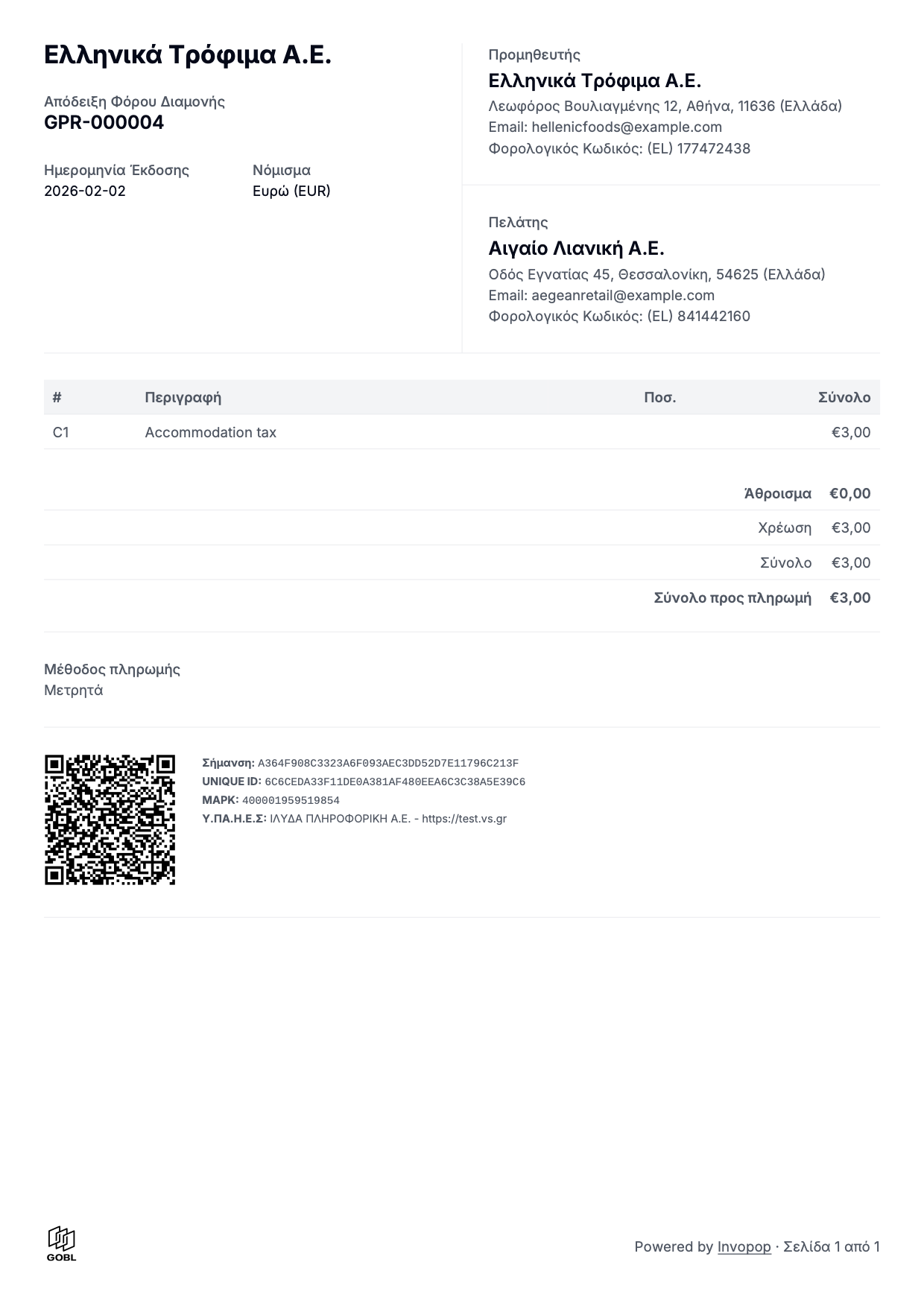
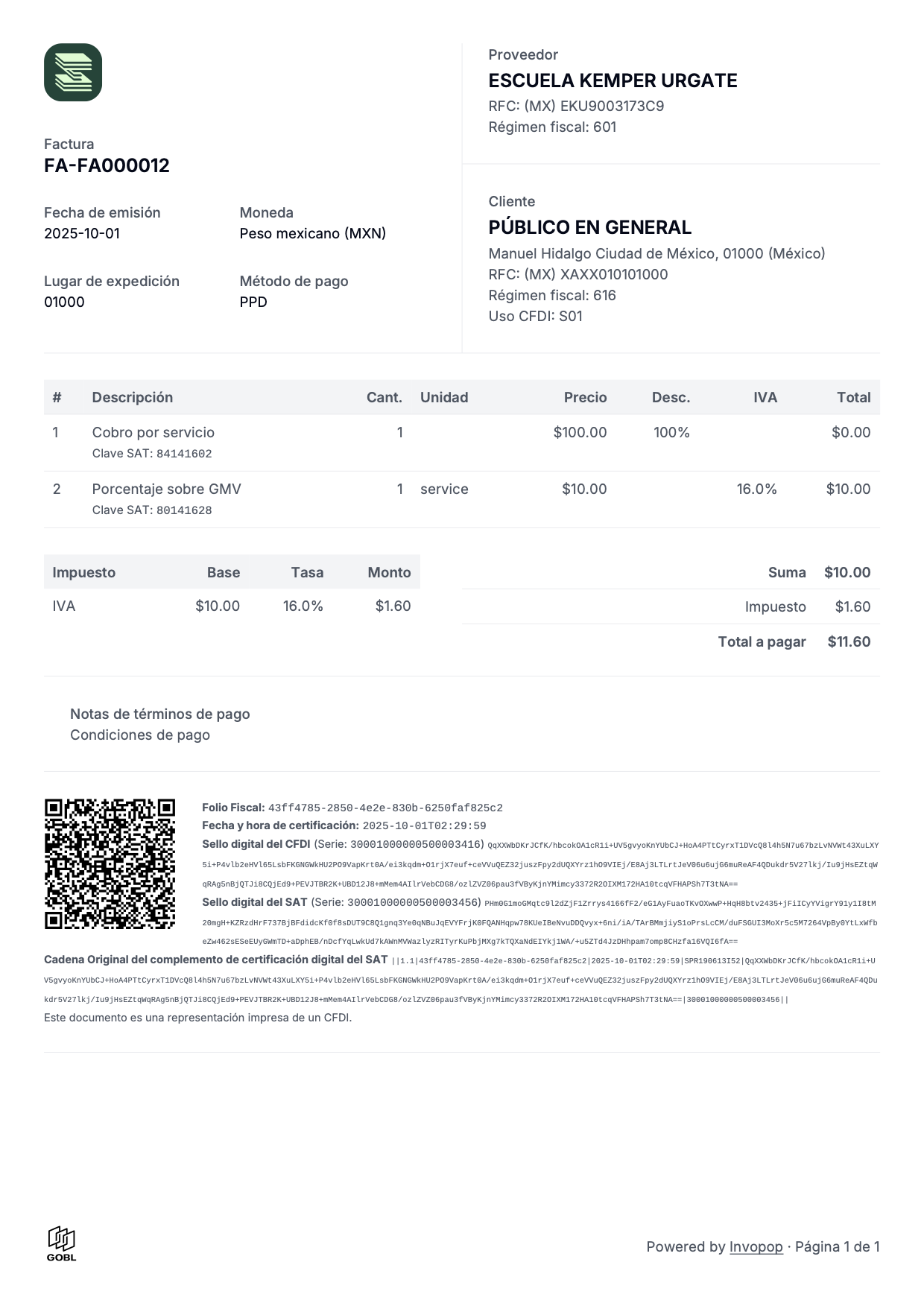
 ## FAQ
Add it to the supplier object within a `logos` array, the first logo in the array will be used. Make sure the "Generate PDF" step not configured with a logo, as it will override the supplier's logo.
```json theme={"system"}
"supplier": {
"name": "Invopop SL",
"tax_id": {
"country": "ES",
"code": "B85905495"
},
"logos": [
{
"url": "https://assets.invopop.com/logo.png",
"height": 100,
"width": 100
}
]
}
```
If the logo is not displayed, make sure your image is publicly accessible. Sometimes server restrictions prevent our services from accessing the image. An convenient way to verify that your image is publicly accessible is by asking an AI assistant “is this URL https\://… publicly accesible?”.
Spain, along with a very small selection of other countries like Poland, doesn’t officially recognise the concept of credit or debit notes. Instead they use the concept of corrective or adjustment invoices whereby the amounts are displayed as differences from the original document. The two main types are:
* Replacement Invoice (Factura Rectificativa por Sustitución) known in GOBL with the invoice type `corrective` and completely replaces any previous documents.
* Adjustment Invoice (Factura Rectificativa por Diferencias) reflected in GOBL as either a `credit-note` or `debit-note` invoice type that appends to the previous documents.
GOBL is a designed to be an international format, so when deciding the types we try to take the most common business concepts and map them to local requirements. A credit note by definition implies a deduction from the preceding invoice, so all totals and values must be positive. This can cause confusion in Spain, where most companies are accustomed to the local way of issuing invoices with negative totals.
When converting GOBL to the local tax agency format (like VERI\*FACTU XML in Spain), Invopop will automatically inverts the values in a credit-note to ensure that the agency receives what they are expecting, while at the same time maintaining global compatibility in the actual document. With these changes, PDF can now apply the same logic to invert the totals and change the text translations while maintaining the same underlying information.
***
Ask and answer questions about PDF invoices →
## FAQ
Add it to the supplier object within a `logos` array, the first logo in the array will be used. Make sure the "Generate PDF" step not configured with a logo, as it will override the supplier's logo.
```json theme={"system"}
"supplier": {
"name": "Invopop SL",
"tax_id": {
"country": "ES",
"code": "B85905495"
},
"logos": [
{
"url": "https://assets.invopop.com/logo.png",
"height": 100,
"width": 100
}
]
}
```
If the logo is not displayed, make sure your image is publicly accessible. Sometimes server restrictions prevent our services from accessing the image. An convenient way to verify that your image is publicly accessible is by asking an AI assistant “is this URL https\://… publicly accesible?”.
Spain, along with a very small selection of other countries like Poland, doesn’t officially recognise the concept of credit or debit notes. Instead they use the concept of corrective or adjustment invoices whereby the amounts are displayed as differences from the original document. The two main types are:
* Replacement Invoice (Factura Rectificativa por Sustitución) known in GOBL with the invoice type `corrective` and completely replaces any previous documents.
* Adjustment Invoice (Factura Rectificativa por Diferencias) reflected in GOBL as either a `credit-note` or `debit-note` invoice type that appends to the previous documents.
GOBL is a designed to be an international format, so when deciding the types we try to take the most common business concepts and map them to local requirements. A credit note by definition implies a deduction from the preceding invoice, so all totals and values must be positive. This can cause confusion in Spain, where most companies are accustomed to the local way of issuing invoices with negative totals.
When converting GOBL to the local tax agency format (like VERI\*FACTU XML in Spain), Invopop will automatically inverts the values in a credit-note to ensure that the agency receives what they are expecting, while at the same time maintaining global compatibility in the actual document. With these changes, PDF can now apply the same logic to invert the totals and change the text translations while maintaining the same underlying information.
***
Ask and answer questions about PDF invoices →