> ## Documentation Index
> Fetch the complete documentation index at: https://docs.invopop.com/llms.txt
> Use this file to discover all available pages before exploring further.
# Slack Guide
> Simple connection to Slack for sending messages.
Invopop's [Slack app](/apps/slack) helps you keep your team updated by sending automated messages to a Slack channel of your choice. For instance, you might want to receive a message when one of your job executions fails:
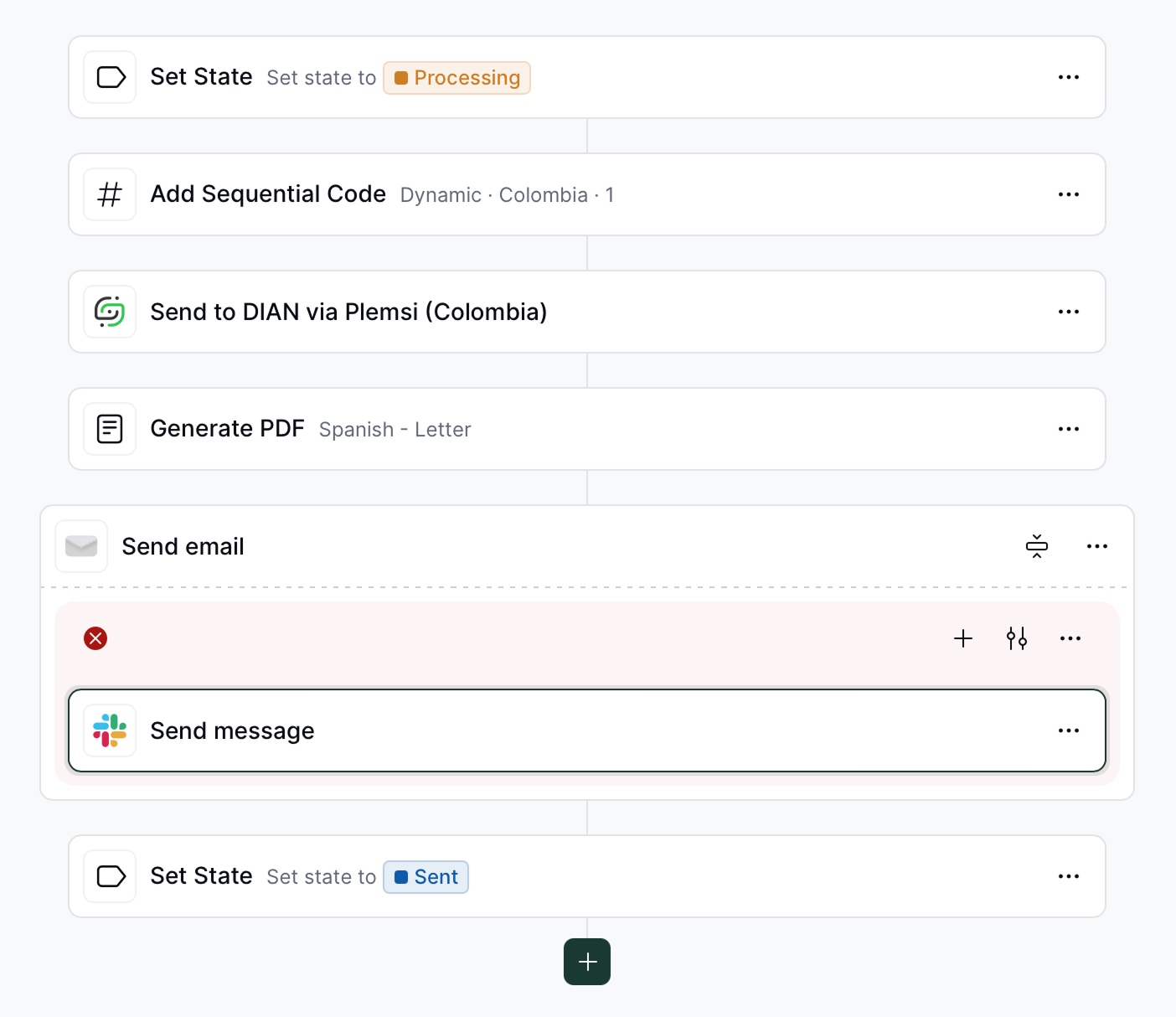 In this example, you will receive in your Slack channel `#random` a message like `Job fe094ad0-3e12-11ef-bfd5-15fe9005edf3 failed!` when the PDF generation fails.
## Prerequisites
You require Slack account with full membership or an admin role within a workspace.
## How to use
To configure the Slack app in your workspace, follow these steps:
1. Navigate to **Configuration** → **Apps**.
2. Find the Slack App and click `Connect`.
3. Click `Configure` and then `Add Slack Channel`.
4. In the newly opened window, select the channel where you want to send messages.
After you have selected a channel, you will be redirected back to the Invopop console, where you should see a message that says “Authorized and connected to:” followed by the list of channels that you are connected to. This confirms that the connection was successful.
In case you want to connect more channels, click the "Add Slack Channel" and connect the new one.
To use the Slack step in your workflows, follow these steps:
1. Navigate to the Workflows section and select the workflow you want to modify.
2. Add the Slack step to your workflow.
3. Select the Slack channel where you want to send messages.
4. Customize the message content as needed.
To verify the connection, you can run the workflow on an existing silo entry and see if you receive a message in the Slack channel.
1. Navigate to the Silos section and select the silo entry you want to run the workflow on.
2. Click on the workflow you want to run.
3. Click on the "Run Workflow" button.
4. Wait for the workflow to complete and check the Slack channel for the message.
If you receive a message in the Slack channel, the connection is successful.
Ask and answer questions about Slack integration →
In this example, you will receive in your Slack channel `#random` a message like `Job fe094ad0-3e12-11ef-bfd5-15fe9005edf3 failed!` when the PDF generation fails.
## Prerequisites
You require Slack account with full membership or an admin role within a workspace.
## How to use
To configure the Slack app in your workspace, follow these steps:
1. Navigate to **Configuration** → **Apps**.
2. Find the Slack App and click `Connect`.
3. Click `Configure` and then `Add Slack Channel`.
4. In the newly opened window, select the channel where you want to send messages.
After you have selected a channel, you will be redirected back to the Invopop console, where you should see a message that says “Authorized and connected to:” followed by the list of channels that you are connected to. This confirms that the connection was successful.
In case you want to connect more channels, click the "Add Slack Channel" and connect the new one.
To use the Slack step in your workflows, follow these steps:
1. Navigate to the Workflows section and select the workflow you want to modify.
2. Add the Slack step to your workflow.
3. Select the Slack channel where you want to send messages.
4. Customize the message content as needed.
To verify the connection, you can run the workflow on an existing silo entry and see if you receive a message in the Slack channel.
1. Navigate to the Silos section and select the silo entry you want to run the workflow on.
2. Click on the workflow you want to run.
3. Click on the "Run Workflow" button.
4. Wait for the workflow to complete and check the Slack channel for the message.
If you receive a message in the Slack channel, the connection is successful.
Ask and answer questions about Slack integration →