

Introduction
This guide will show you how to configure the Send Webhook workflow step to send HTTP requests automatically from your workflows. You can use webhooks to notify external systems, trigger automations, or synchronize data with third-party APIs whenever an event occurs.Setup and configuration
Add the Send Webhook step to your workflow by searching or locating it in the actions list under the Notify section.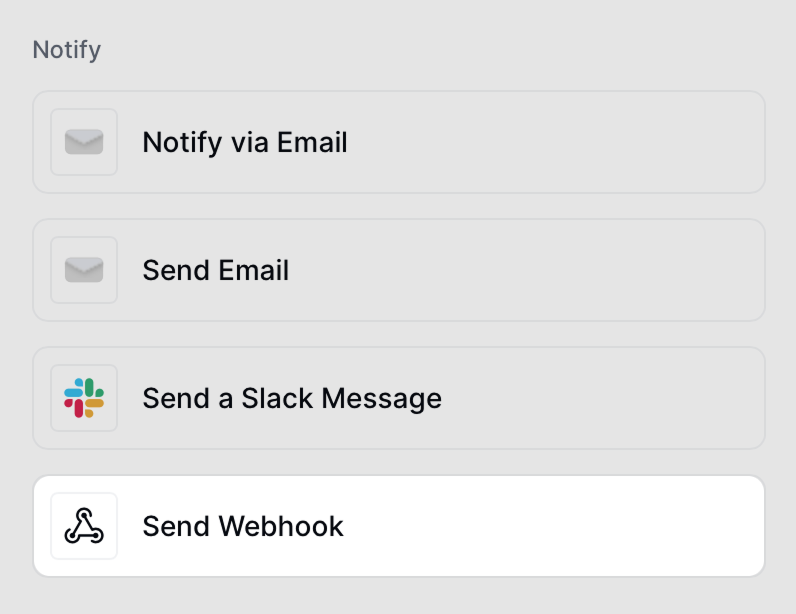
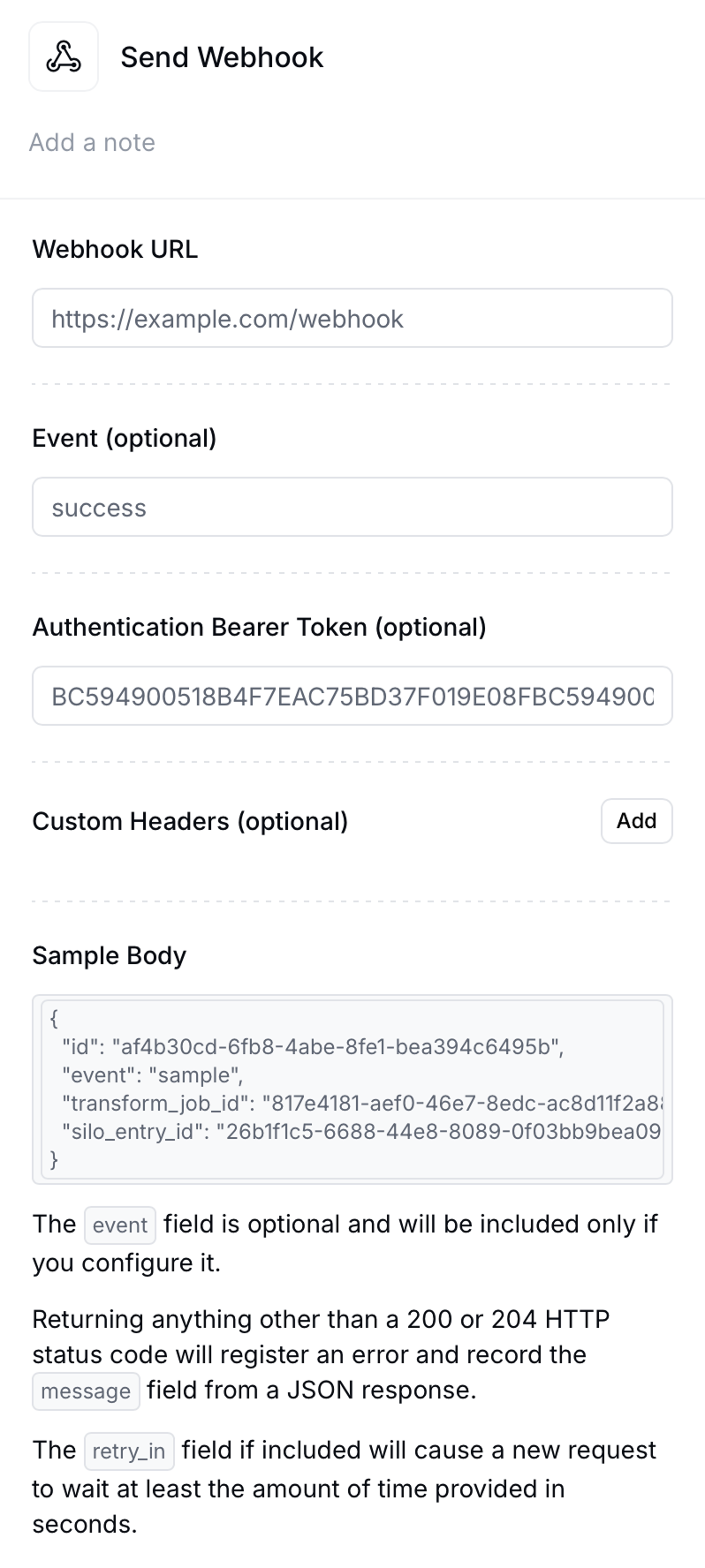
The endpoint that will receive the
POST request.
Event (optional)Specify a custom event name such as
success, error, or invoice_sent. This will appear under the event field in the JSON payload.
AuthenticationChoose how the request authenticates with your endpoint. Only the selected type is saved.
- None: requests are sent without credentials.
- Bearer token: a static token. Each request carries the header
Authorization: Bearer <your_token>. - OAuth 2.0: Invopop requests a short-lived token from your authorization server with the client credentials grant. Each request carries the header
Authorization: Bearer <access_token>.
Use OAuth 2.0 when your endpoint or API gateway only accepts short-lived tokens. Fill in these fields:
- Token URL: the token endpoint of your authorization server. It must use HTTPS.
- Client ID: the client identifier issued by your authorization server.
- Client secret: the secret for that client. It is not shown again after saving. Leave the field empty to keep the saved secret, or type a new one to replace it.
- Scope (optional): the scopes to request, separated by spaces. Leave it empty if your server needs none.
- It calls the token URL with
grant_type=client_credentials. The client ID and secret go in the HTTP Basic header first. If the server answers400or401, Invopop tries once with the credentials in the form body, then keeps the style that worked. - It reuses the token until 30 seconds before
expires_in. For tokens that last less than a minute, it refreshes at half the lifetime. - If your endpoint answers
401, Invopop drops the token and the attempt fails. The next retry requests a new token. There is no retry inside the same attempt.
Each Invopop server keeps its own token. Several valid tokens can exist at the same time for one webhook configuration. Your authorization server must allow several active tokens per client.
Add one or more HTTP headers. This is useful for services that require API keys, content types, or verification signatures. Sample Body
Below is an example of the JSON payload that will be sent:
idthe id of the webhook event.eventcustom event name set up in the step (if any).transform_job_idthe id of a job run through the Transform Job endpointsilo_entry_idthe id of the silo entrykeythe job’s key to ensure idempotency.argscertain workflow steps can add data to the args field which is then made available to subsequent steps and to webhook payloads.faultsarray of fault objects that represent errors that occurred during the processing of the job.
These are the faults of the job identified by
transform_job_id, and together with the same array on the job itself they are the reliable record of what went wrong. Prefer them over the faults field on the silo entry, which exists for backwards compatibility and is only populated when the entry’s last state came from a job that errored or failed. The webhook will expect a
200 or 204 response code. Any other response will be treated as an error and will be automatically retried after a delay. Have your agent build a webhook receiver for job results.
Retries
When a webhook is triggered, Invopop will wait for a response. The behavior is as follows:- Success (
200/204) → Webhook will produce anOKstatus and no retry process will be triggered. - Anything else → Webhook will trigger the retry process.
retry_in field in your response with the number of seconds you wish to wait between retries. The system will then retry up to 32 times before returning a KO status. Here is an example of such a response:
FAQ
What happens if my webhook endpoint is down?
What happens if my webhook endpoint is down?
If your endpoint fails to respond or returns a non-
200/204 status code, Invopop will retry automatically. If the
error persists, the webhook step will return a KO status.Can I send multiple webhooks in the same workflow?
Can I send multiple webhooks in the same workflow?
Yes. You can add multiple Send Webhook actions in the same workflow, each targeting a different endpoint or event.
What security options are available?
What security options are available?
You can authenticate using a static bearer token, OAuth 2.0 client credentials or custom headers (e.g.
X-Signature, X-API-Key). See Setup and configuration for the OAuth 2.0 fields. It’s recommended to use HTTPS and verify the token or header server-side.What content type do webhooks use?
What content type do webhooks use?
All webhook requests are sent with
Content-Type: application/json.Can I customize the json payload of the webhook?
Can I customize the json payload of the webhook?
You can’t customize the webhook payload. If you need additional information, fetch the corresponding entry or job directly. This design ensures security compliance by preventing sensitive data from being delivered through webhooks.
Participate in our community
Ask and answer questions about webhooks →