

Introduction
KSeF (Krajowy System e-Faktur) 2.0 is Poland’s mandatory national e-invoicing system operated by the Ministry of Finance. Because all B2B invoices are cleared through KSeF, the invoices your suppliers receive are also available in the system — and Invopop can import them into your workspace automatically. This guide walks you through configuring your workspace to periodically import received invoices from KSeF, and how to trigger imports manually when needed. Two companion guides cover the rest of the family: Poland: Supplier registration and Poland: Issuing invoices. The import process uses two apps working together:- Poland: Queries KSeF for received invoices and converts the FA(3) XML to GOBL format.
- Cron: Schedules the sync workflow to run automatically at a regular interval (e.g., hourly or daily).
Prerequisites
To receive invoices from KSeF, you will need:- The Poland app connected and a registration workflow in place: covered in the KSeF supplier registration guide. Parties must be registered with the send & receive variant of the registration workflow described below.
- The Cron app, connected as part of the setup in this guide.
How it works
Once everything is configured, imports run automatically:- Cron scheduling: The Cron app creates a job for the sync workflow at each configured interval, passing the time window (
fromandupto) to process - Sync workflow: The sync workflow queries KSeF for all invoices received within the time window
- Import jobs: For each invoice found, a job is created using your import workflow
- Import workflow: Each job downloads the FA(3) XML from KSeF, converts it to GOBL format, and stores it in your Invopop silo
- Organization: Imported invoices are automatically placed in the configured folder (typically “Invoices · Expenses”) with a
Registeredstate
Setup
All of the following steps must be carried out from the Invopop Console.The Poland app must already be connected — this is covered in the supplier registration guide.
1
Connect the Cron app
- Navigate to Configuration → Apps
- Find Cron in the app discovery list
- Click Connect to activate
2
Configure the invoice import workflow
This workflow imports an individual invoice from KSeF when it is received. It is automatically triggered by the sync workflow (configured in the next step) for each invoice found.
KSeF import invoice workflow
Add to my workspace →
- Workflow
- Code
3
Configure the invoice sync workflow
This workflow syncs all received invoices for a party within a specific time range. It creates an import job for each invoice found, using the import workflow you configured in the previous step.Configure the Sync received invoices from KSeF step to reference the import workflow created in the previous step.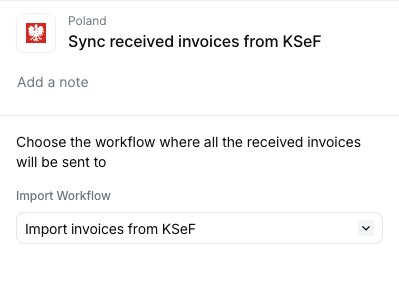
KSeF sync received invoices workflow
Add to my workspace →
- Workflow
- Code
4
Configure the send & receive registration workflow
To receive invoices for a party, the party must be registered with the send & receive variant of the registration workflow. In addition to registering the party with KSeF, this variant subscribes the party to periodic invoice imports via the Cron app.
KSeF party registration workflow (receive)
Add to my workspace →
- Workflow
- Code
5
Configure the cron step to start syncing invoices to Invopop
After adding the send & receive workflow (regardless of how you created it), open the Subscribe to periodic KSeF sync step and configure the two fields below. This is what tells the Cron app which workflow to run and how often.
- Workflow — select the KSeF Sync Received Invoices workflow you created earlier in this setup. The Cron app will trigger this workflow on each tick.
- Interval — choose how often KSeF should be checked for new invoices (for example, every hour or every day). Pick a frequency that matches how quickly you need received invoices to appear in Invopop.
Running
Register a party for receiving
Register each party whose received invoices you want to import by running the send & receive registration workflow on their party entry. The registration steps — creating the party, running the workflow, and completing the certificate upload in demo or production — are identical to the ones described in the supplier registration guide; simply select the send & receive workflow instead of the send-only one.Each party is subscribed to periodic imports during registration. To use a different interval for a specific party, adjust the Subscribe to periodic KSeF sync step settings in the registration workflow before running it.
If a party was already registered with the send-only workflow, run the send & receive workflow on the same party entry to subscribe it to periodic imports.
Automatic import
Once parties are registered with the send & receive workflow, the Cron app automatically triggers the sync workflow at the interval configured in the registration workflow’s Subscribe to periodic KSeF sync step, following the process described in How it works. Imported invoices appear in the configured folder (typically “Invoices · Expenses”) with aRegistered state.
Manual import
If you need to import invoices outside of the automatic cron schedule, you can manually trigger imports from the Console or via the API. Import a single invoice To import a specific invoice from KSeF, you need:- KSeF Number: The unique invoice identifier (e.g.,
1234567890-20260120-ABCD1234-EF) - Supplier NIP: The Polish Tax ID of the invoice issuer
- Console
- API
- Navigate to Workflows and find your KSeF Import Invoice workflow
- Click Run from the workflow editor or the
...menu in the workflow list (see Running from the Console) - Leave the document field empty — the import workflow will create a new silo entry automatically
- Fill in the Arguments:
- Click Run workflow
- The party silo entry for the supplier whose invoices you want to sync
- The date range (
fromandupto) to process
- Console
- API
- Navigate to Workflows and find your KSeF Sync Received Invoices workflow
- Click Run from the workflow editor or the
...menu in the workflow list - In the Select a document field, search for and select the party (supplier) entry
- Fill in the Arguments:
- Click Run workflow
Error handling and notifications
We strongly recommend adding notification steps to your workflows to alert you of import failures:- In the import workflow: Add email or Slack notifications to the error handling section
- In the sync workflow: Add notifications for when the sync process encounters issues
FAQ
How do I import received invoices from suppliers?
How do I import received invoices from suppliers?
Invopop automatically imports received invoices through a polling service:
- Configure polling interval during party registration (hourly, daily, weekly, or monthly)
- Set up the sync workflow to query KSeF for new invoices
- Configure the import workflow to convert FA(3) XML to GOBL format
- Link the workflows in the Poland app configuration
Can I import historical invoices or backfill missed invoices?
Can I import historical invoices or backfill missed invoices?
Yes. You can manually trigger a sync workflow to import invoices from a specific date range using the Create a Job endpoint.Pass the This is useful for backfilling invoices after a polling outage or importing historical data before enabling automatic polling.
from and upto date parameters to sync all invoices received within that period:How do I know if my automatic invoice import is working?
How do I know if my automatic invoice import is working?
Check these indicators:
- Polling configuration: Verify the polling interval is set in your party registration workflow configuration
- App configuration: Confirm the Poland app has your sync workflow configured
- Recent imports: Check the “Invoices · Expenses” folder for newly imported invoices
- Job logs: Review job logs in the Console for sync and import workflow executions
- Error notifications: Set up email or Slack notifications in your workflow error handling to alert you of failures
What format do received KSeF invoices arrive in?
What format do received KSeF invoices arrive in?
FA(3) XML conforming to the Ministry of Finance schema. Each invoice carries a unique KSeF reference (numer KSeF) plus the issuer’s signature and a QR code linking to the public verification page.
How does Invopop convert received Polish invoices into GOBL?
How does Invopop convert received Polish invoices into GOBL?
Inbound FA(3) XMLs are parsed via
gobl.ksef. Tax rates, line items, and parties map onto GOBL fields; the original signed XML is preserved as a silo entry attachment.🇵🇱 Invopop resources for Poland
🇵🇱 Invopop resources for Poland


Participate in our community
Ask and answer questions about invoicing in Poland →