

Introduction
Before a supplier can issue CFDI (Comprobante Fiscal Digital por Internet) documents in Mexico, they must be registered with Invopop’s local PAC (Proveedor Autorizado de Certificación), SW Sapien, who signs and submits invoices to the country’s tax authority, the SAT (Servicio de Administración Tributaria). In this guide you’ll learn how to register a supplier using the SAT Mexico app, and how to unregister them when they should no longer issue invoices from your workspace. Once a supplier is registered, continue with the companion guide: Mexico: Issuing documents.Prerequisites
To register a supplier with the SAT, you will need:- Supplier Information:
- Name
- Taxpayer ID (RFC - Registro Federal de Contribuyentes)
- Address
- Fiscal regime code (as defined by SAT)
- Two certificates required by the SAT:
- e.firma (FIEL): Confirms your identity before SAT. Required to obtain the CSD below and to authorize the PAC to issue on your behalf as explained in step 3 of the Register a supplier section below.
- CSD (Certificado de Sello Digital): Required to sign electronic invoices and prove they were issued by you.
Setup
Configure your Invopop workspace for supplier registration by following these steps in the Invopop Console:These instructions apply to both the sandbox and live environments, with a few exceptions related to supplier data and registration details when real information is not available.
1
Set up the Supplier Post-Registration Workflow
SAT supplier post-registration workflow
Add to my workspace →
- Workflow
- Code
2
Set up the Supplier Registration Workflow
SAT register supplier workflow
Add to my workspace →
- Workflow
- Code
3
Connect the SAT Mexico App
In the left sidebar, under the Configuration section, click Apps. This will display all available apps.Search for SAT Mexico and click Connect. The app will move to the “Enabled Apps” section.Next, click Configure. This will open a dialog on the right with two fields:
- Environment: Sandbox / Live
- Post-registration workflow: SAT supplier post-registration
Register a supplier
Registering a business entity requires uploading the CSD to our local provider, SW Sapien, via a form (see Step 2: Complete Supplier Registration). This upload goes to either the sandbox or live environment, depending on your SAT Mexico App configuration. Each CSD is tied to an RFC. When you submit an e-invoice, including the supplier’s RFC, SW Sapien checks for a valid CSD linked to it, as SAT requires a valid certificate to issue invoices.You can complete this process through the Invopop Console or the API. We’ll walk through it using the Console, but don’t worry, the steps are nearly identical for the API. We’ll add notes along the way to clarify any differences.
Registration is required even in the sandbox now. When following the steps below in that environment, you don’t need a real CSD: you can register either your own company and certificate, or any of the test companies published on the SW Sapien test page, where you can download each test company’s certificate, private key, and password. Either way, make sure the supplier’s name and RFC matches its certificate.
1
Run the Supplier Registration Workflow
In the left sidebar, go to the Parties section and click Suppliers.Then click +New Supplier and enter the supplier’s data manually using the console, or switch to developer mode (Click Build, make sure there are no errors, then click Save.Next, click Select Workflow and execute the Supplier Registration Workflow.
</> icon) to paste the data directly.Here is an example supplier for reference:Mexico supplier example
2
Complete Supplier Registration
After it completes, open the Details window and click on Meta. You should see a section called Registration Link with a URL: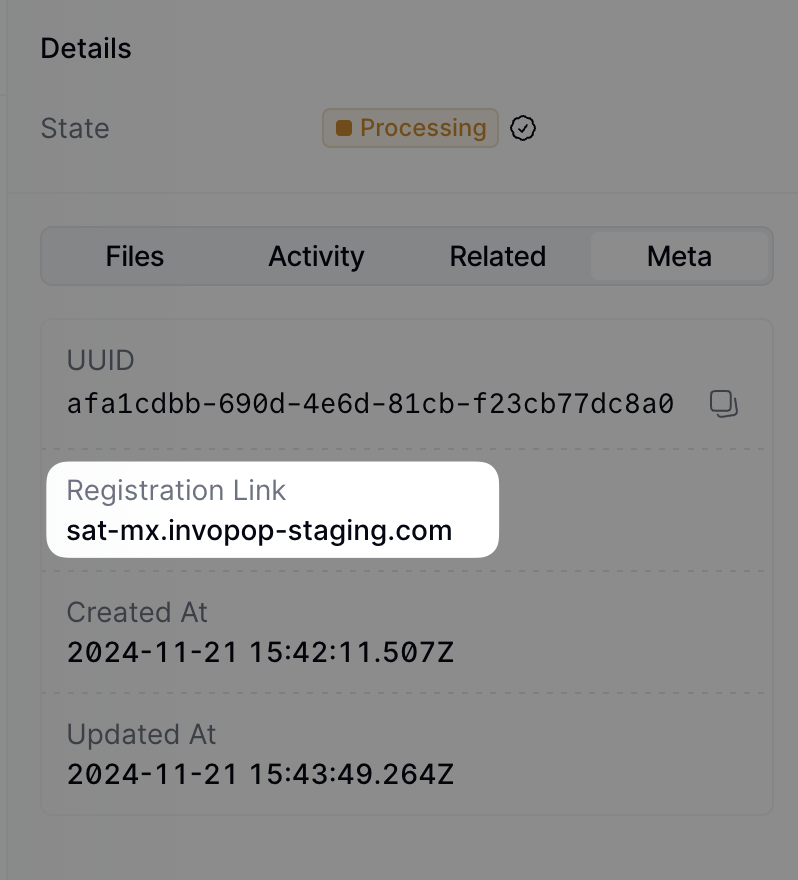
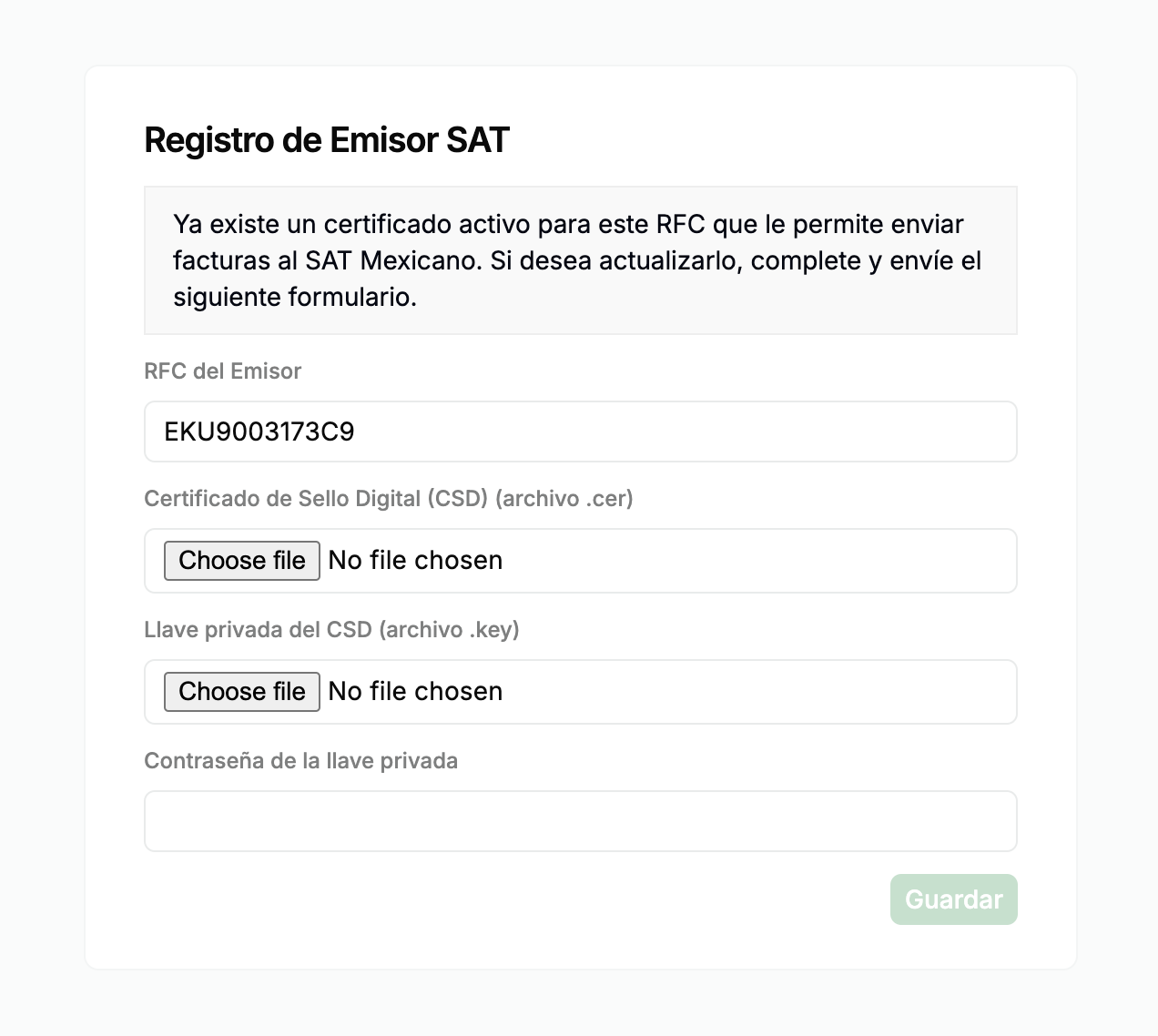
You can access the registration link via the API by fetching the silo entry and locating the meta entry where the key is
registration-link.Note that this form can be shared directly with the supplier if required.
.crt), private key (.key), and the private key password.Follow this guide to generate the CSD certificate and key if you need to.When you click Save, the form details are securely sent to the PAC (Proveedor Autorizado de Certificación), who will handle invoice signing and submission to the SAT.You can fill the form via API by sending a PUT request to the registration link. The payload should be a JSON object with the following fields:
csd_file(string): The CSD certificate file (.crt).key_file(string): The private key (.key).password(string): The private key password.
rfc(string): The RFC of the supplier.active_cert(boolean): Whether the certificate is active.
3
Authorize PAC to Issue Invoices
Since we are using a local PAC, you must authorize the PAC to sign, stamp, and send CFDIs to the SAT on your behalf.To do this, visit the following page and sign the manifesto using your e.firma (FIEL).
Unregister a supplier
Unregistering a supplier revokes their invoice issuing privileges from your workspace. You might need to unregister an entity because the supplier is no longer your client or because of a change in their Tax ID. To do so, use the following workflow template:SAT unregister supplier
Add to my workspace →
- Workflow
- Code
FAQ
Which PAC (Proveedor Autorizado de Certificación) does Invopop use?
Which PAC (Proveedor Autorizado de Certificación) does Invopop use?
Invopop uses SW Sapien, an Authorised Certification Provider (PAC), to sign and stamp CFDI documents for the Mexican tax authority.
What happens if my CSD certificate is revoked?
What happens if my CSD certificate is revoked?
Without a valid CSD, the issuer cannot stamp any CFDI through any PAC. SAT can administratively revoke a CSD when it suspects fraudulent activity, repeated non-compliance, or tax debts. Operations halt until the supplier resolves the underlying cause and obtains a new CSD. CSDs also expire every four years. Suppliers should monitor CSD validity proactively; Invopop relies on the CSD uploaded during supplier registration and does not manage its lifecycle.
How do I onboard a new supplier in Mexico?
How do I onboard a new supplier in Mexico?
Generate a registration link via the SAT Mexico Register Supplier workflow. The supplier uploads their CSD certificate (
.cer + .key + password) and authorizes the PAC. Once validated, the supplier is ready to issue CFDIs.What certificates does SAT/CFDI require to authenticate a supplier?
What certificates does SAT/CFDI require to authenticate a supplier?
A CSD (Certificado de Sello Digital) issued by SAT specifically for invoicing — distinct from the FIEL (e.firma) used for portal login. The CSD comprises a
.cer (X.509) and .key (encrypted private key) with a password set at generation. Validity: 4 years.How are supplier credentials stored in Invopop for Mexico?
How are supplier credentials stored in Invopop for Mexico?
The CSD certificate (
.cer), private key (.key), and key password are stored encrypted at rest. Invopop uses them only to seal CFDIs before transmission to the PAC; the password and key are never returned in API responses.🇲🇽 Invopop resources for Mexico
🇲🇽 Invopop resources for Mexico



Participate in our community
Ask and answer questions about invoicing in Mexico →