

Introduction
RO e-Factura is Romania’s mandatory national e-invoicing system, run by the Ministry of Finance and ANAF. Because B2B invoices in scope go through RO e-Factura, the invoices your suppliers receive are also available in the system, in their SPV — and Invopop can import them into your workspace automatically. This guide walks you through configuring your workspace to periodically import received invoices from RO e-Factura. Two companion guides cover the rest of the family: Romania: Supplier registration and Romania: Issuing invoices. The import process uses two apps working together:- Romania: Fetches received invoices from RO e-Factura and converts them to GOBL format.
- Cron: Runs the sync workflow automatically at a regular interval (e.g., hourly or daily).
Prerequisites
To receive invoices from RO e-Factura, you will need:- The Romania app connected and a registration workflow in place: covered in the RO e-Factura supplier registration guide. Parties must be registered with the registration workflow that includes the Subscribe to periodic execution step.
- The Cron app, connected as part of the setup in this guide.
How it works
Once everything is configured, imports run automatically:- Cron scheduling: The Cron app creates a job for the sync workflow on the party at each configured interval
- Sync workflow: The Receive all new invoices from RO e-Factura step asks RO e-Factura for the invoices received since the last successful sync
- Import jobs: For each invoice found, a job is created using the workflow set as Import Workflow in the sync step
- Import workflow: Each job downloads the invoice from RO e-Factura, archives it, converts it to GOBL and stores it as a new invoice in your Invopop silo
- Organization: Imported invoices are placed in the configured folder (typically “Invoices · Expenses”) with a Registered state
The import workflow is run by the sync workflow only. Don’t run it yourself: everything is handled by configuring the sync workflow.
Setup
All of the following steps must be carried out from the Invopop Console.The Romania app must already be connected — this is covered in the supplier registration guide.
1
Connect the Cron app
- Navigate to Configuration → Apps
- Find Cron in the app discovery list
- Click Connect to activate
2
Configure the invoice import workflow
This workflow imports one received invoice. It is triggered by the sync workflow (configured in the next step) for each invoice found:
- Import a single invoice from RO e-Factura downloads the invoice, archives it, converts it to GOBL and stores it as a new invoice entry.
- Set folder to Invoices · Expenses.
- Set state to Registered.
- Workflow
- Code
3
Configure the invoice sync workflow
This workflow fetches the invoices a party received since the last sync and creates an import job for each one, using the import workflow you configured in the previous step.Open the Receive all new invoices from RO e-Factura step and set Import Workflow to RO import invoice.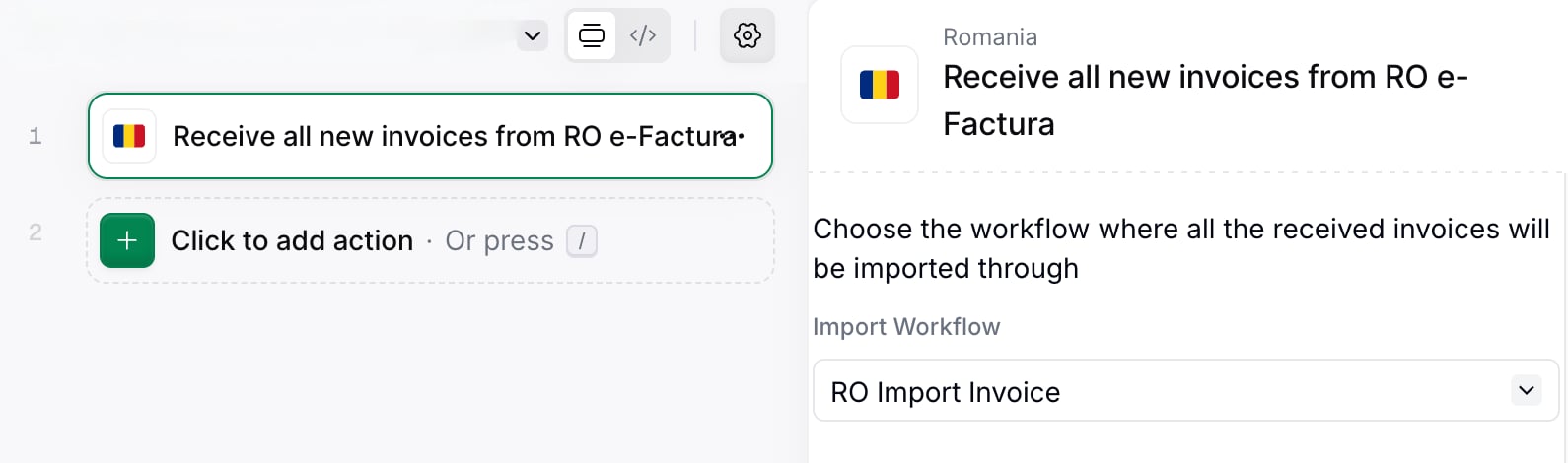
- Workflow
- Code
4
Configure the cron step of the registration workflow
The RO register party workflow ends with the Subscribe to periodic execution step, which tells the Cron app which workflow to run on the party and how often. Open the step and configure: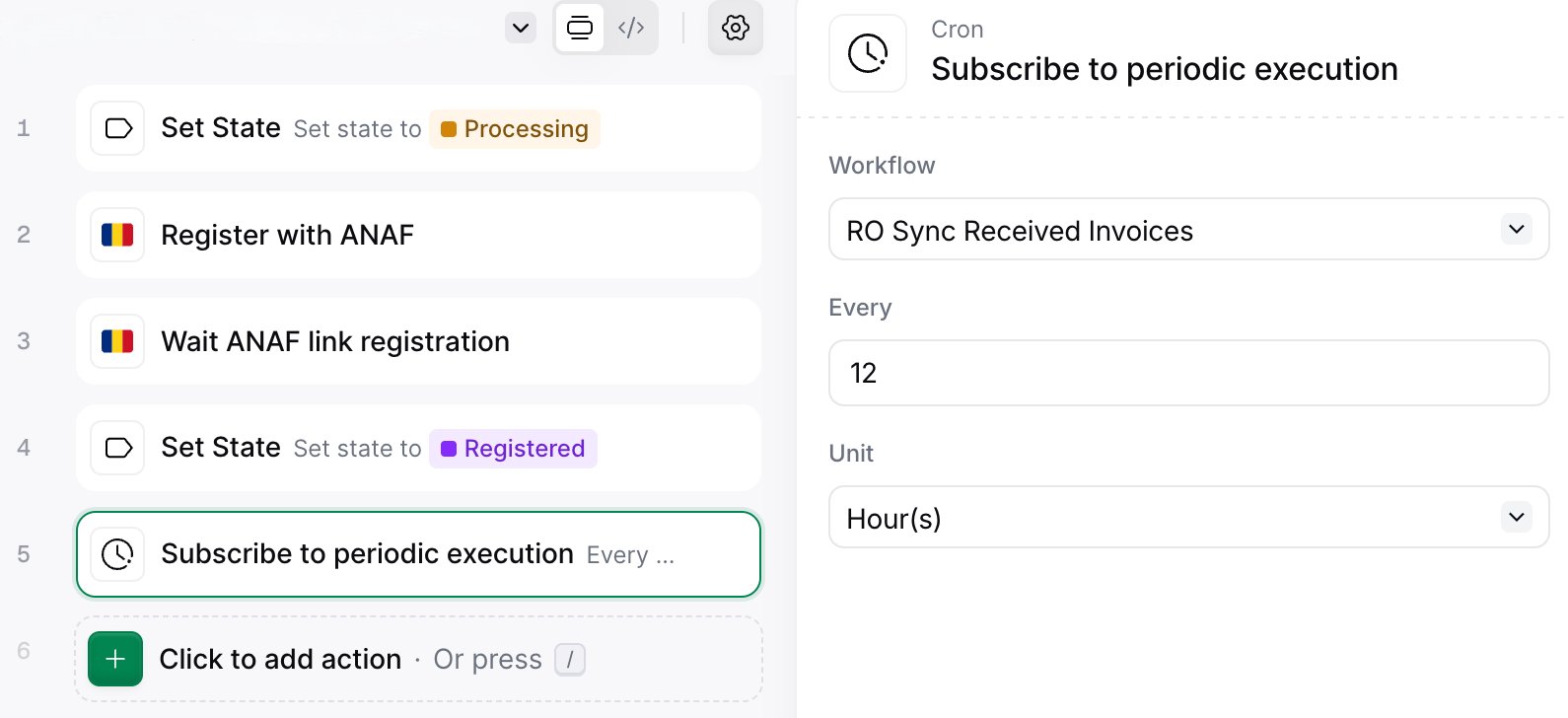
- Workflow — select the RO sync received invoices workflow you created in the previous step. The Cron app runs it on each tick.
- Every and Unit — choose how often RO e-Factura should be checked for new invoices (for example, every 12 hours).
- Workflow
- Code
Running
Register a party for receiving
Register each party whose received invoices you want to import by running the RO register party workflow on their party entry. The steps — creating the party, running the workflow and completing the ANAF authorization — are described in the supplier registration guide.Invoices are imported from the moment the party completes its registration. Invoices received before that are not imported.
If a party was registered without the subscribe step, run the registration workflow with the step on the same party entry to subscribe it to periodic imports.
Automatic import
Once parties are registered, the Cron app runs the sync workflow at the interval configured in the Subscribe to periodic execution step, following the process described in How it works. Imported invoices appear in the configured folder (typically “Invoices · Expenses”) with a Registered state.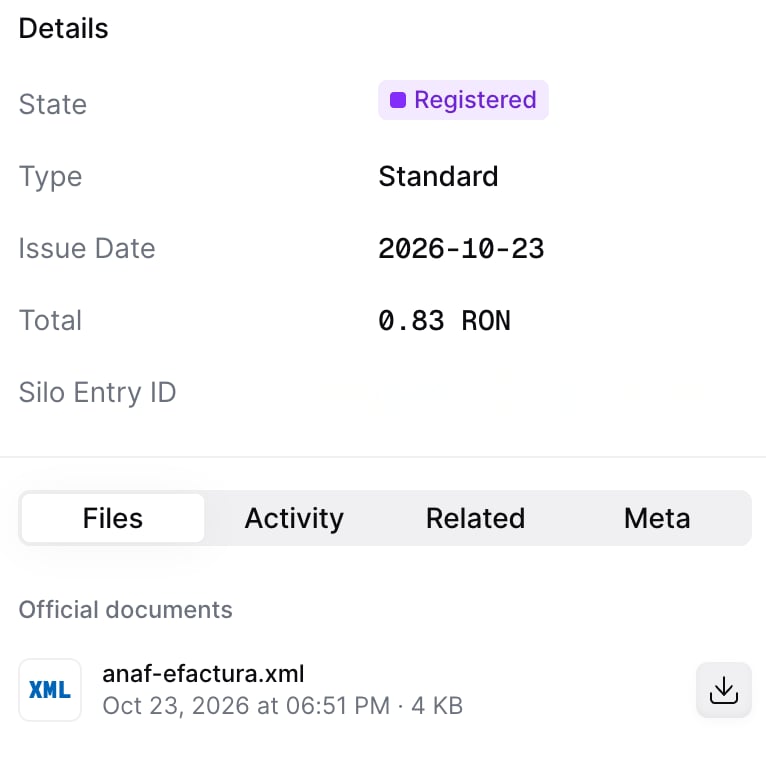
Sync on demand
To fetch new invoices without waiting for the next tick, run the RO sync received invoices workflow on the party entry, from the Console or with the Create a job endpoint. It imports everything received since the last successful sync.Error handling and notifications
We strongly recommend adding notification steps to your workflows to alert you of import failures:- In the import workflow: Add email or Slack notifications to the error handling section
- In the sync workflow: Add notifications for when the sync process encounters issues
FAQ
Which invoices are imported?
Which invoices are imported?
Invoices other companies issued to the registered party and that ANAF made available in its SPV, from the moment the party completed registration. Invoices received before registration are not imported.
Do I need to run the import workflow myself?
Do I need to run the import workflow myself?
No. The RO sync received invoices workflow creates one import job per received invoice, using the workflow set as Import Workflow in its Receive all new invoices from RO e-Factura step. Don’t run the import workflow directly.
What happens if the sync stops for a while?
What happens if the sync stops for a while?
Each sync picks up from where the last successful one finished, so no invoice is missed. ANAF keeps messages for 60 days, so a party that stops syncing for longer loses the older ones.
What is stored for an imported invoice?
What is stored for an imported invoice?
The ANAF archive is kept in Invopop’s database, and a new invoice entry is created in the silo with the invoice converted to GOBL. The workflow then sets the folder and state, typically Invoices · Expenses and Registered.
🇷🇴 Invopop resources for Romania
🇷🇴 Invopop resources for Romania


Participate in our community
Ask and answer questions about invoicing in Romania →