series: set to your point of sale (punto de venta) number
Do not set code (Invopop will assign it during authorization)
Do not sign your invoice before sending it to ARCA. The workflow assigns the invoice code and signs the document automatically during the Send invoice to ARCA step.
ARCA requires invoices to be numbered sequentially without gaps. Invopop assigns the invoice code during the Send invoice to ARCA workflow step based on the last issued invoice number.
Choose the appropriate invoice type based on your tax classification and customer type:
Factura A - Registered taxpayer to registered taxpayer (B2B)
Factura A is issued by registered taxpayers (Responsable Inscripto) to other registered taxpayers or monotributistas. This invoice type includes VAT broken down separately.Notice:
the minimal version in the first tab contains only the essential fields required to create the Factura A,
the ar-arca-v4 addon ensures the document will be validated using the ARCA rules built into the GOBL library,
both supplier and customer must be registered taxpayers with valid CUIT numbers,
there are no totals or calculations in the minimal version; all these will be calculated automatically when running gobl build,
the built version in the second tab shows the normalized document with calculated totals, line item sums, IVA breakdowns shown separately, and automatically generated fields, and,
the invoice will be submitted to ARCA for authorization and receive a CAE (Código de Autorización Electrónico).
Factura B - Registered taxpayer to final consumer (B2C)
Factura B is issued by registered taxpayers (Responsable Inscripto) to final consumers, exempt entities, non-categorized subjects, and foreign tourists. VAT is included in the total price.Notice:
the customer is typically a final consumer (Consumidor Final) and may not have a CUIT,
the minimal version contains only essential fields; gobl build handles all calculations,
when running gobl build, the system automatically calculates totals with IVA included in the price (not shown separately as in Factura A),
the built version shows the normalized document with calculated totals where VAT is included in the final amounts,
the ar-arca-v4 addon applies Factura B specific rules and validations, and,
the invoice will be submitted to ARCA for authorization and receive a CAE.
Factura C - Monotributista invoice (small business)
Factura C is issued by monotributistas (simplified tax regime for small businesses and freelancers) to any type of customer. This invoice type does not break down VAT separately.Notice:
the supplier is registered under the monotributo regime, which is a simplified tax system for small businesses,
the minimal version contains only essential fields; totals are calculated by gobl build,
when running gobl build, the system automatically calculates totals without breaking down VAT separately (VAT is included but not itemized),
the built version shows the normalized document with calculated totals where no VAT breakdown is shown, as monotributistas don’t separately charge VAT,
the ar-arca-v4 addon applies Factura C specific rules and ensures compliance with monotributo requirements, and,
the invoice will be submitted to ARCA for authorization and receive a CAE.
Factura T - Tourism invoice for non-resident tourists
Factura T is issued by hotels and tourism providers to non-resident tourists. ARCA automatically reimburses the 21% VAT on qualifying accommodation items.Notice:
the minimal version in the first tab contains only the essential fields required to create the Factura T,
the ar-arca-v4 addon ensures the document will be validated using the ARCA rules built into the GOBL library,
the document type (ar-arca-doc-type) must be 195 (Invoice), 196 (Debit Note) or 197 (Credit Note), and the tourism extensions ar-arca-tourism-type and ar-arca-tourism-item are mandatory,
only the standard 21% VAT rate is accepted; any other rate will be rejected by ARCA,
the built version shows the normalized document with calculated totals and the IVA breakdown, and,
the invoice will be submitted to ARCA for authorization and receive a CAE.
Nota de Crédito A - Credit note correcting a Factura A
Credit notes (notas de crédito) reverse all or part of a previously authorized invoice — for returns, discounts, or billing errors. The credit note class (A, B, or C) follows the class of the invoice it corrects.Notice:
the type is set to credit-note; combined with the registered-taxpayer parties, the ar-arca-v4 addon maps it to document type 3 (Nota de Crédito A),
the preceding array references the original invoice by series, code, and issue_date, with a reason for the correction,
the preceding entry carries the ar-arca-doc-type extension set to 1, identifying the original document as a Factura A,
the lines describe only the amounts being credited — here, two returned notebooks from the original ten, and,
like invoices, the credit note is submitted to ARCA for authorization and receives its own CAE.
After uploading, you’ll see the document in the Invoices section with status Empty.
2
Send the invoice to the ARCA invoice workflow
Send the invoice to your ARCA workflow using the Create a job endpoint. Use:
workflow_id: the Workflow ID of the ARCA Invoice workflow you created during setup
silo_entry_id: the Silo Entry ID of the invoice you uploaded
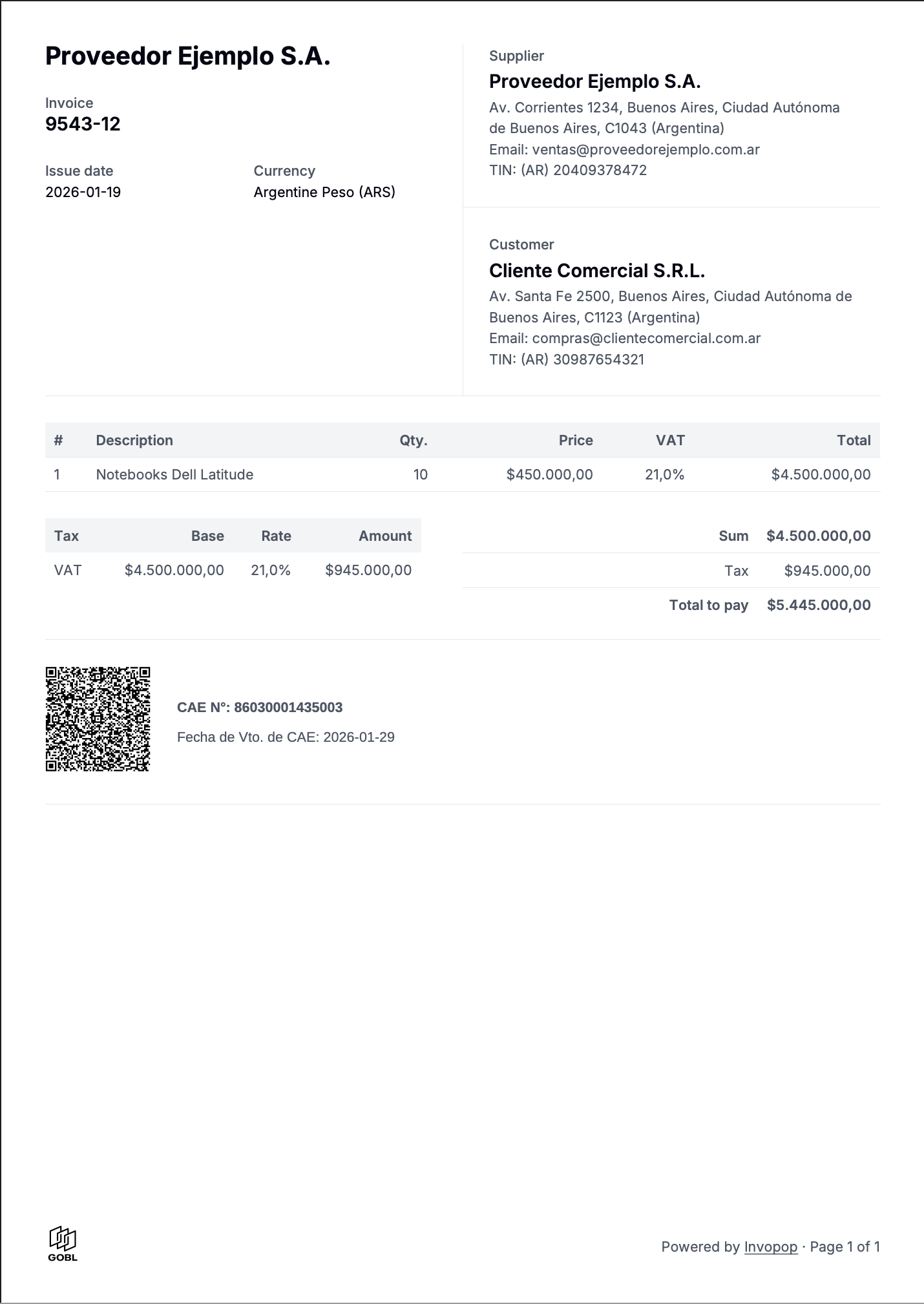
The invoice status will change to Sent when the workflow completes successfully.You can verify that the PDF was generated by opening the invoice and selecting the PDF from the Files tab. The PDF includes the CAE and the required QR code.
What invoice types are commonly used in Argentina?
Factura A (B2B between Responsables Inscriptos), Factura B (consumers and exempt entities), Factura C (Monotributistas to anyone), Factura E (exports) and Factura T (tourism services to non-resident tourists). Type is determined by the issuer’s tax regime and the customer’s classification — Invopop selects the right one automatically when both are set.
How are ARCA invoices delivered?
Most ARCA-cleared invoices are delivered as PDFs with the CAE printed on them, though the underlying XML is also available on request. Invopop can convert the XML into GOBL for downstream processing; PDF-only documents need OCR or manual capture.
How does invoice numbering work in Argentina?
Argentine invoices use a two-part numbering system: XXXXX-YYYYYYYY
Punto de Venta (POS): A 5-digit code (e.g., 00001) that identifies the point of sale or electronic invoicing method.
Sequential Number: An 8-digit code (e.g., 00000001) that increases by 1 with each invoice.
The sequence must be continuous with no skipped or repeated numbers. Each invoice type (A, B, C) and POS combination has its own independent sequence. For example, Factura A from POS 0001 starts at 00001-00000001, while Factura B from the same POS would also start at 00001-00000001.Invopop automatically manages sequential numbering for each punto de venta.
What is a Punto de Venta (point of sale)?
A Punto de Venta (POS) is a 5-digit code that identifies where invoices are issued from. In electronic invoicing, it represents the electronic invoicing method or channel (e.g., Web Service, ARCA portal).Each POS has its own independent invoice sequence for each invoice type. You must register your punto de venta with ARCA before you can issue invoices through it in production. In the sandbox environment, you can use test punto de venta numbers without registration.
Do I need different puntos de venta for different invoice types?
No, you can use the same punto de venta for different invoice types (Factura A, B, C, etc.). However, each invoice type will have its own independent sequential numbering within that punto de venta.For example, using POS 00001:
WSFE (Web Services de Factura Electrónica) is ARCA’s web service infrastructure for automated invoice submission. ARCA provides several web services:
wsfev1: For invoices A, B, C, and M without item detail
wsmtxca: For invoices A and B with item details
wsfexv1: For type E (export) invoices
wsct: For type T (tourism) invoices issued to non-resident tourists
Invopop integrates with these services to automatically submit your invoices to ARCA and receive CAE authorization codes in real time.
What happens if ARCA rejects my invoice?
If ARCA rejects an invoice, you’ll receive an error message explaining the reason for rejection. Common reasons include:
Invalid or unregistered CUIT
Missing required fields
Incorrect tax calculations
Sequential numbering errors
Invalid punto de venta
Review the error message, correct the issue in your GOBL document, and resubmit the invoice. The rejected invoice does not count toward your sequential numbering, so you can use the same number after correction.
Where do I find Argentina-specific GOBL documentation?
See the Argentina tax regime in GOBL for tax IDs, tax categories, and AFIP/ARCA-specific extensions. The ar-arca-v1 addon documents required fields for invoice submission to ARCA.